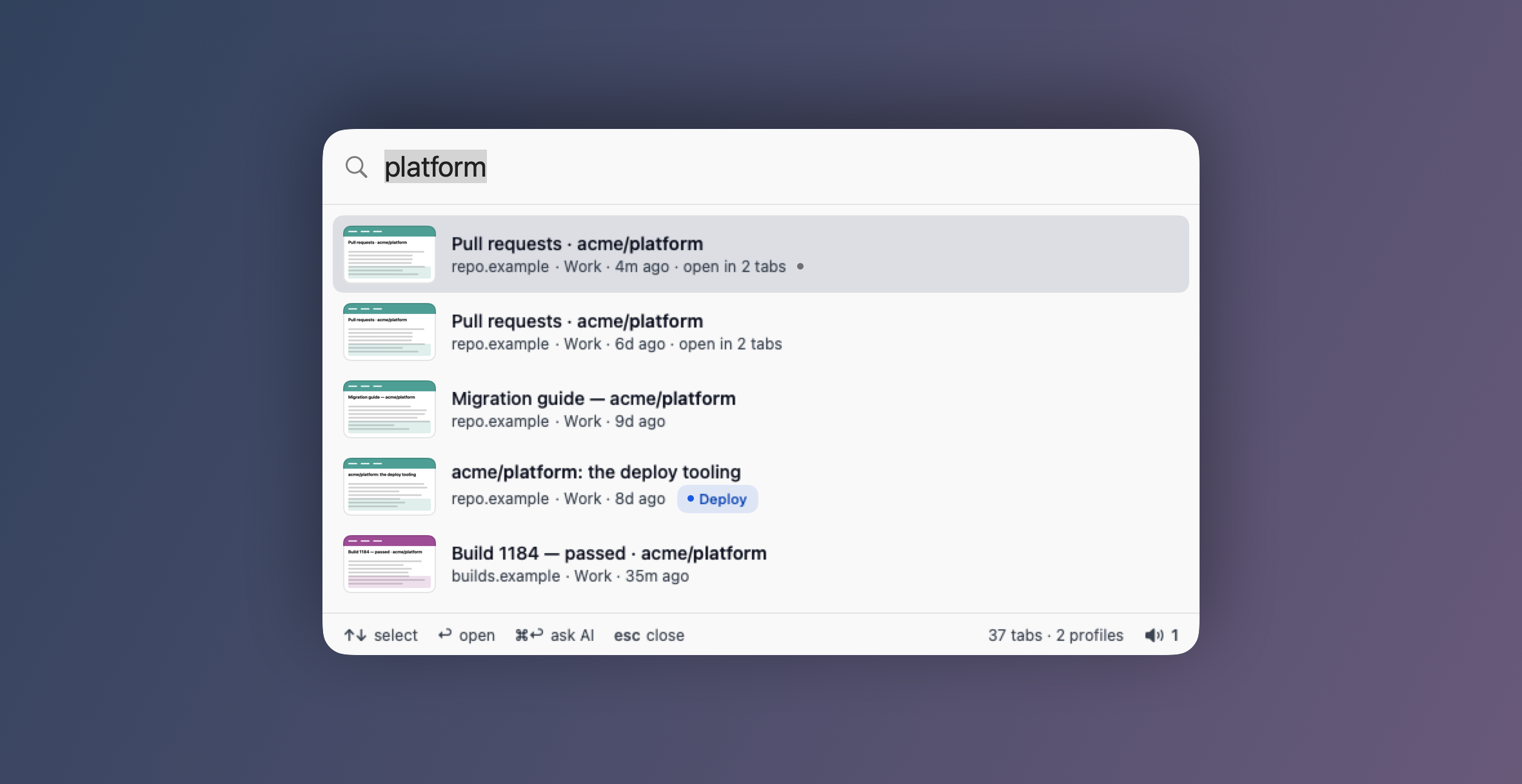
Diagram · the whole menu
- Show Tab Overview ⌥⇧Space
- Search Tabs… ⌥Space
- Tidy Up Tabs… ⌥⇧C
- Ungroup All Tabs
- Undo Close
- Memory
- Heavy Tabs…
- (Under pressure: Free up memory… and Saved for later (5)…)
- Nothing is playing — or the tabs that are, by name
- Silence All Tabs ⌥⇧M
- Unmute All Tabs (2)
- How many tabs it can see, and a line per profile
- Refresh ⌘R
- About Perch
- Settings… ⌘,
- Show Setup Guide…
- Open Manual
- Quit Perch ⌘Q
The menu
It lives in the bar at the top of your screen
- No window until you ask for one. No Dock icon.
- The four jobs you do most have a key beside them.
- Those keys work from any app, whether or not Chrome is in front.
Two pieces: the app in the menu bar, and a small companion extension inside Chrome. The app never touches your tabs itself — it asks the extension.
That diagram is the menu's own wording, set in this page's type. It is not a photograph: macOS will not draw a menu anywhere but on your screen.
About Perch shows which version of Perch you have and its build number, for example Version 0.3.0 (4). Give those two numbers when you ask for help.
Undo Close reopens the tabs Perch itself closed most recently, and says which before you choose it: Undo Close “Page title” for one page, Reopen 3 Tabs for more. It doesn't matter whether you closed them from the palette, the Tab Overview, Tidy Up, an assistant or perch, and it keeps working after the eight-second Reopen offer has gone. On a basic connection the pages go back into the window they came from. When there is nothing to undo, the item is greyed out. Pages you closed in the browser itself aren't Perch's to put back; find them in the palette's Just closed list.
Search
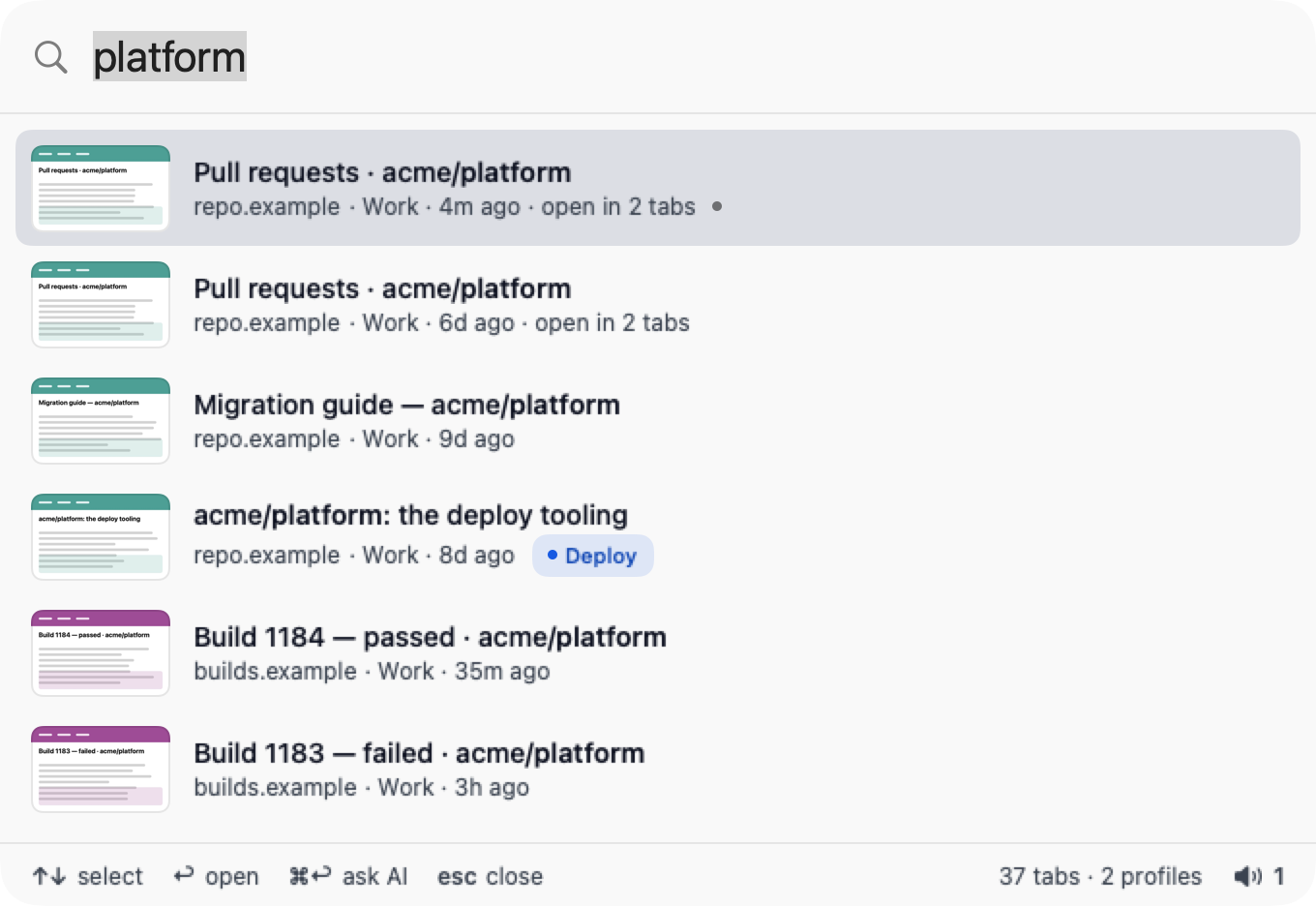
Two seconds from anywhere to any tab
⌥ Option+Space (by default)
- Type a word from the title or the address.
- ↑ ↓ to move. ↩ brings that tab's browser forward with the tab in front.
- esc and nothing happened.
- Point at a row and click its × to close that tab. Your search stays, so you can close the next one. Pinned tabs have no ×.
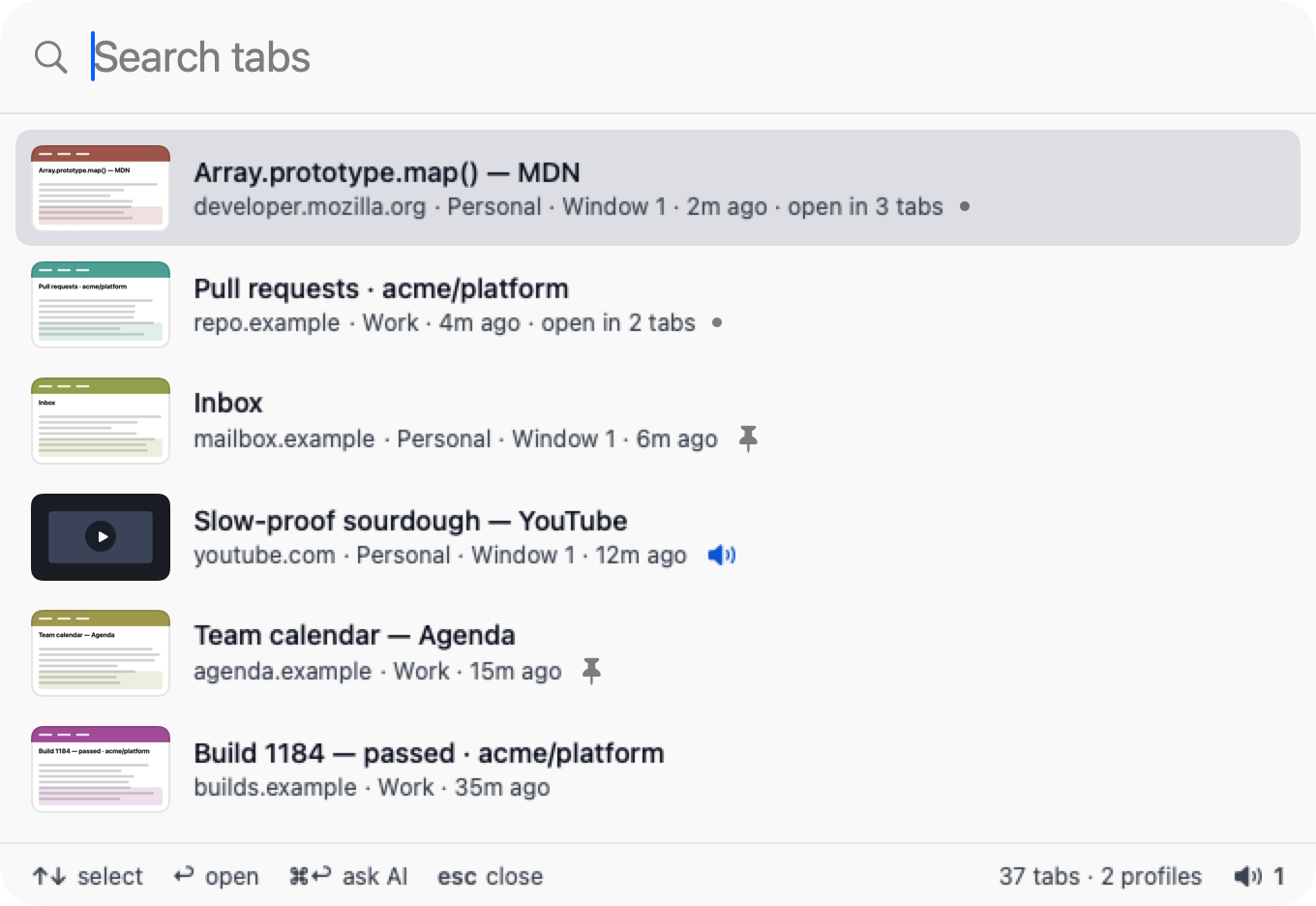
- A page you have open in several tabs keeps one row per tab, and each row ends
open in 3 tabs— the window and the age tell the copies apart.
Before you type, the list is your most recently used tabs — so ⌥ Option + Space then ↩ takes you back where you just were.
The panel itself is solid, not translucent — no desktop showing through — with larger type throughout, and it follows whichever of Light, Dark or System you picked in Settings → Advanced → Data.
Each row shows a small page preview on the left — a screenshot, video still or Open Graph image when one is available, or the site's favicon on its colour when it isn't. A small dot after the address marks the tab showing in its window — point at it and it says so, which is how you tell which of two copies of a page is the one on screen. Pages you have seen before show up here too, and now match by meaning as well as by their words — describe what a page was about and it can surface even when you don't recall a word from its title. It runs on your Mac and never makes a keystroke wait. Press Return on one you have closed and it reopens scrolled to the passage that matched; point at the row and it says Opens at the passage if the page still has it. If the page has changed since, it simply opens at the top. Add when you saw it, in English or Korean — postgres yesterday morning, 어제 오전 회의, last week, 2 hours ago — and those pages narrow to that time; a small chip after your words says what Perch understood, and pointing at it says Seen before shows only pages from this time. Remove it to search for these words instead (⌥⌘⌫). Put a word in quotes to search for it as written, and a typed since: or until: date always wins.
A page you have seen before also says whether it is open now or when you closed it — closed 2 h ago, with read 6 min when you stayed a while — and the selected row names what ↩ will do: Switch to the tab where it is open, Reopen it, or Reopen at passage when Perch can take you back to the words that matched. When nothing open matches but a closed page does, one line at the top says so — Not open. You closed it Tue 3:10 pm. Return reopens it. Perch only dates a close it saw, so a page closed while Perch wasn't running keeps the day you visited it instead.
When Perch can't help fully it says why. A remembered page that kept no text — a site set to titles only, a PDF, a sign-in page — reads Perch kept only the title. And when a search finds nothing at all, the line under No matching tabs. says how long Perch keeps pages, such as Perch keeps pages for 30 days. Anything older is gone. — the keep time you chose in Settings → Advanced → Data.
Closed something by accident? With nothing typed, the list ends with Just closed · on this Mac: the pages you closed in the last hour, newest first, each saying when — press ↩ to reopen one. Last hour, Today and This week widen it, and the clock button in the footer shows this list on its own when you have many tabs open. Point at a row and click the crossed-out eye to stop listing and remembering that site — it joins the excluded sites in Settings → Advanced → Data, where Allow again brings it back — or click Clear this list to hide everything closed so far; nothing is deleted, and both offer Undo. Private windows are never listed, and a page you've opened again isn't either.
The same crossed-out eye appears when you point at an open tab's row or a Seen before page: Don't remember that site. From then on Perch doesn't remember its pages — what it already kept stays until you forget it — and the footer says Changed. From now on, Perch won't remember crunchydata.com. with Undo. With VoiceOver, it is one of the row's actions. The site joins the list in Settings → Advanced → Data, where Allow again brings it back and Forget Saved Pages… deletes what was kept, after asking.
Under each title is one line: the site, then the profile when more than one is connected, then the window number when that profile has more than one window, then when you last used the tab. With one window you just see github.com · 3d ago. The line at the foot of the panel counts your tabs, and adds the profiles only when there are two or more.
A row's address keeps the port for a local dev server, so localhost:3000 and localhost:5173 no longer look like the same page, and drops a leading www. everywhere else.

AI search
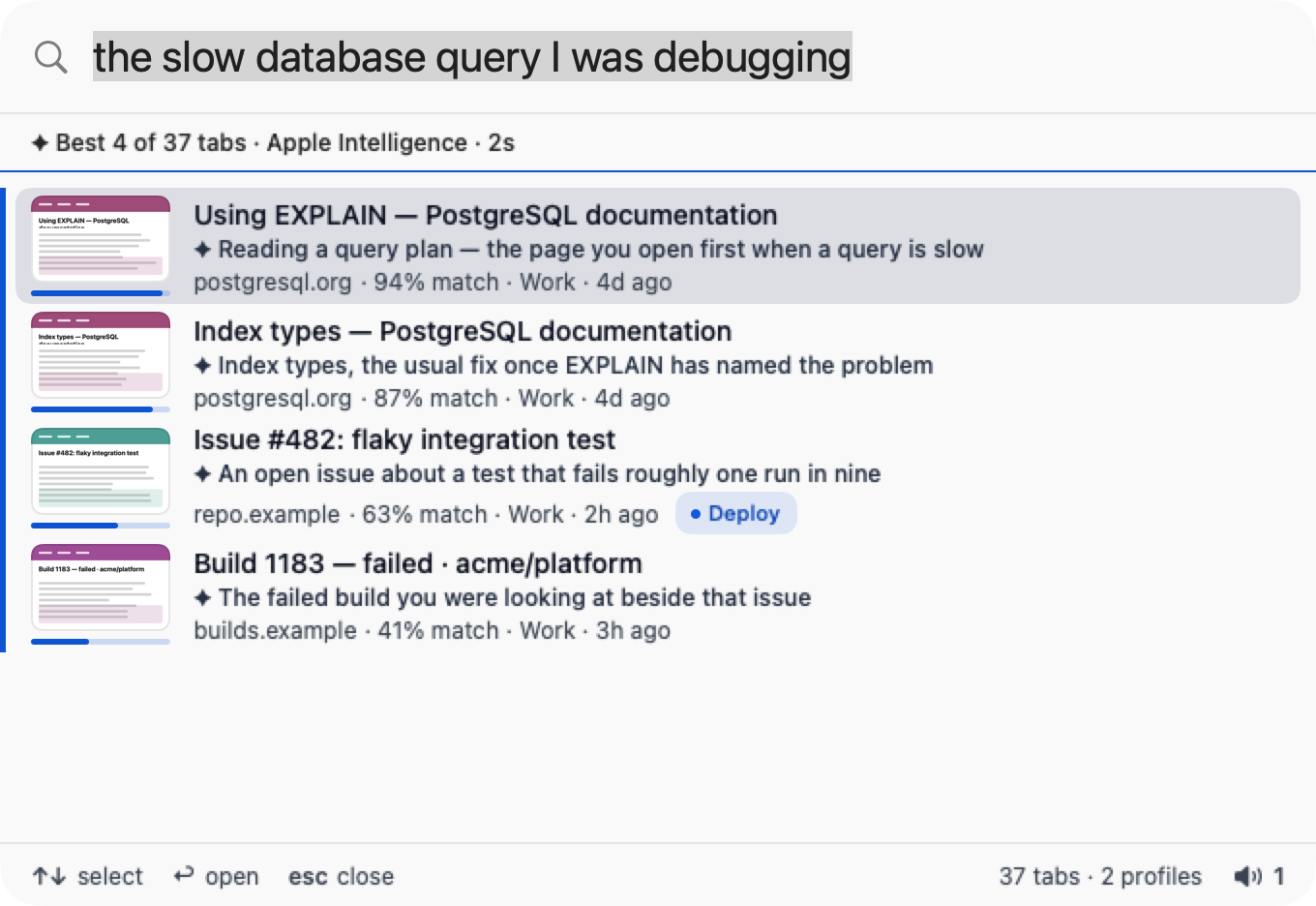
Can't remember the words? Describe it instead
⌘ Cmd+↩ Return
- Write what the page was about, in any language you think in.
- Type a whole sentence and you need not press anything: a moment after you stop typing, the AI answers on its own — even when the keyword search already found something.
- Short queries stay instant. gh, netflix, tabov are answered from your tabs alone and never wait on a model.
- Matches come back with a score and one line of reasoning. Ask for several things and you get several —
attendly documents
shows the set, not the single best guess. - Nothing moves under your cursor while the AI thinks. A tab you have selected stays selected when the answer lands, and once you start arrowing, the answer is applied below where you are.
- ↩ jumps to the top one, the same as always.
- Answers from Apple Intelligence or Perch on-device appear under Possible matches, below keyword results, without a percentage. A tab already found by keywords is not listed twice. Perch on-device lists a possible match only when it is close enough to your question; when nothing is, it shows none. When there are more than three keyword results, the first three stay in view with a line saying how many more there are, and the possible matches follow.
- Perch on-device is Perch's own search model. It compares the meaning of your question with each tab's title and address, and shows the closest tabs as possible matches. It runs entirely on your Mac, needs no account or key, and works on every Mac running macOS 15 or later — including Macs where Apple Intelligence is off or unavailable. It needs a one-time download (about 574 MB) from Perch's download site; you can remove it any time in Settings → Search. Settings → Search shows three groups — On this Mac, Online and A model you run yourself — each with full-width cards; Perch on-device and Apple Intelligence are separate cards under On this Mac, so you pick one by clicking its card. The download is not offered until Perch's download site is live.
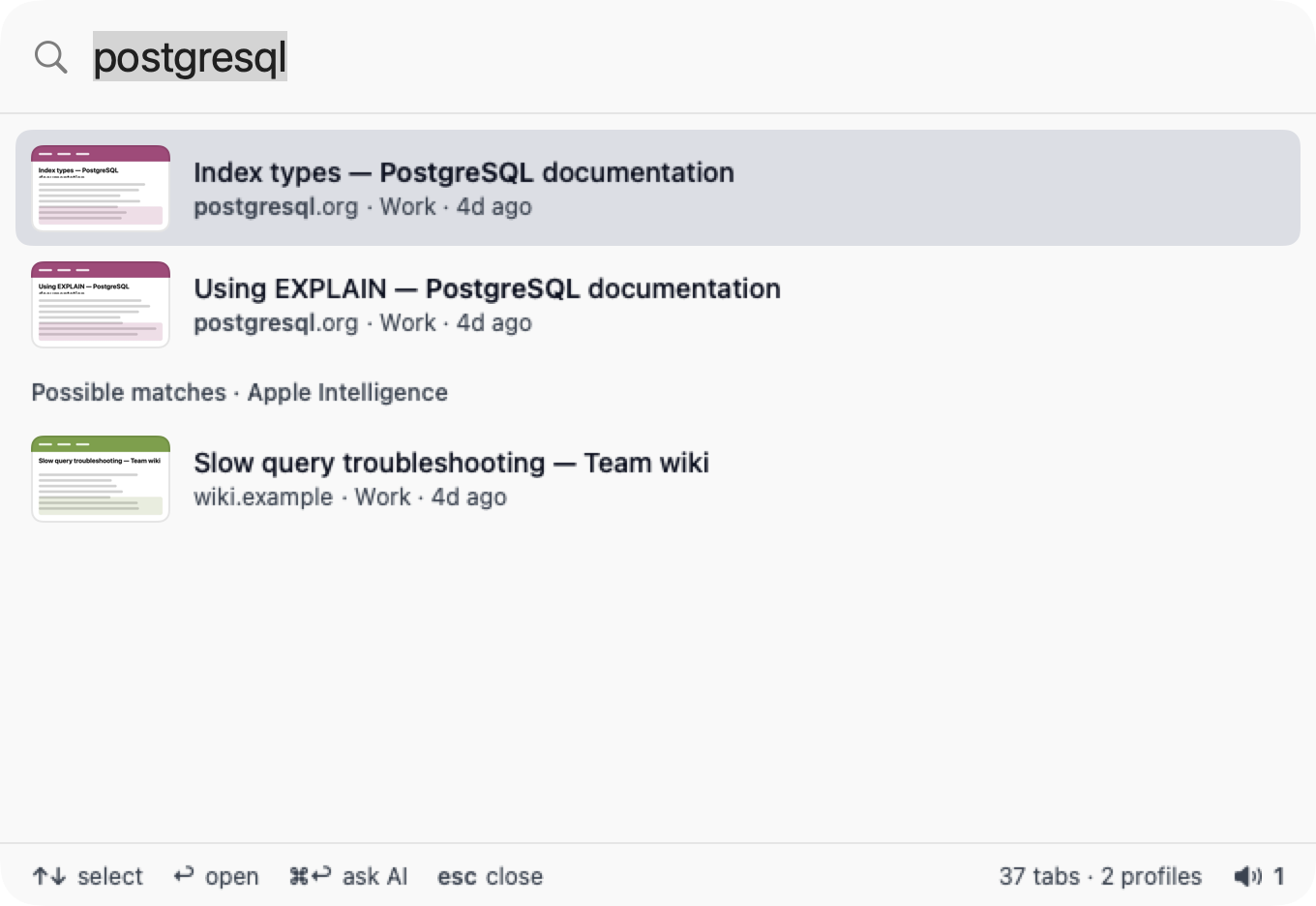
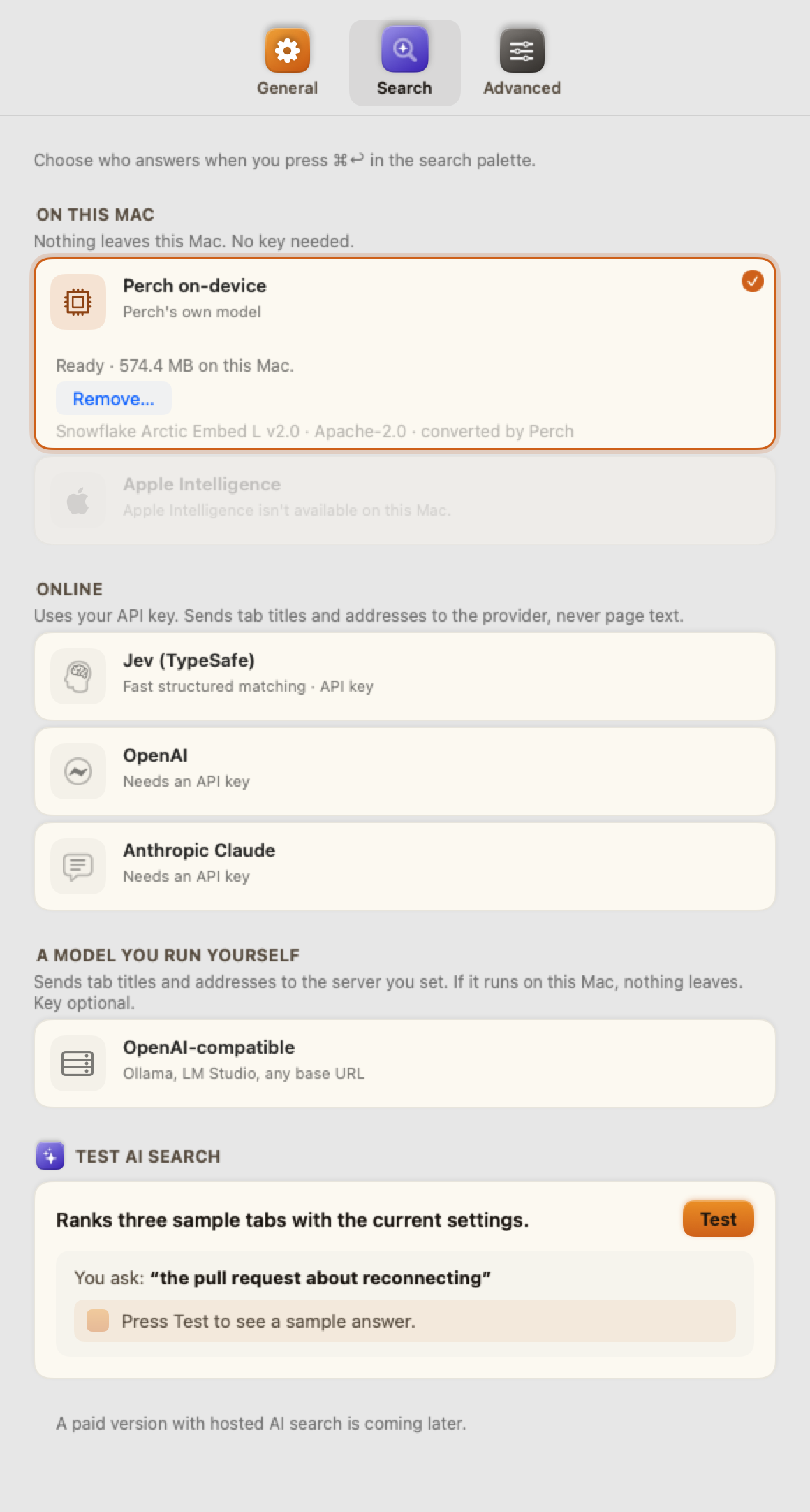
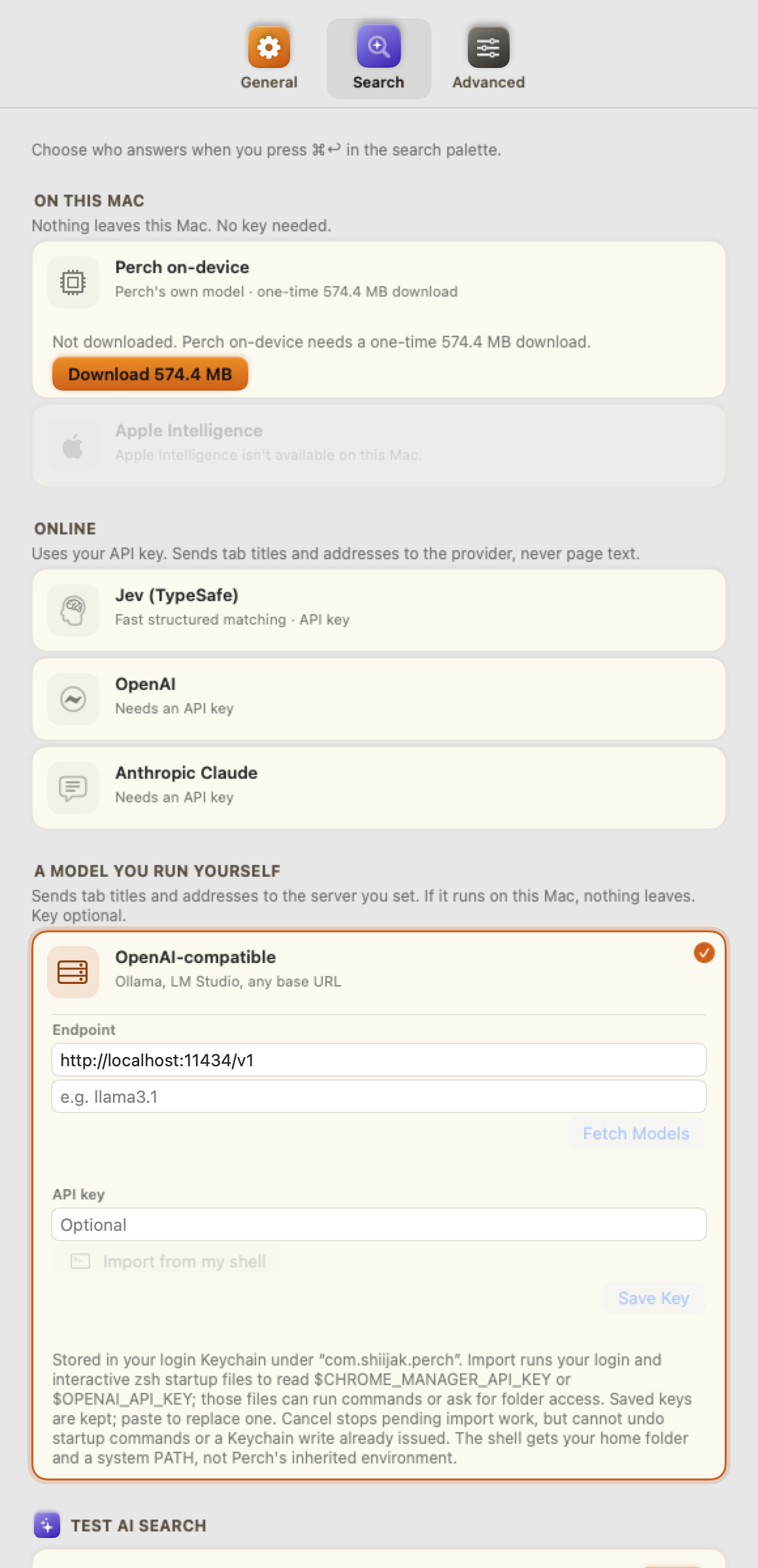
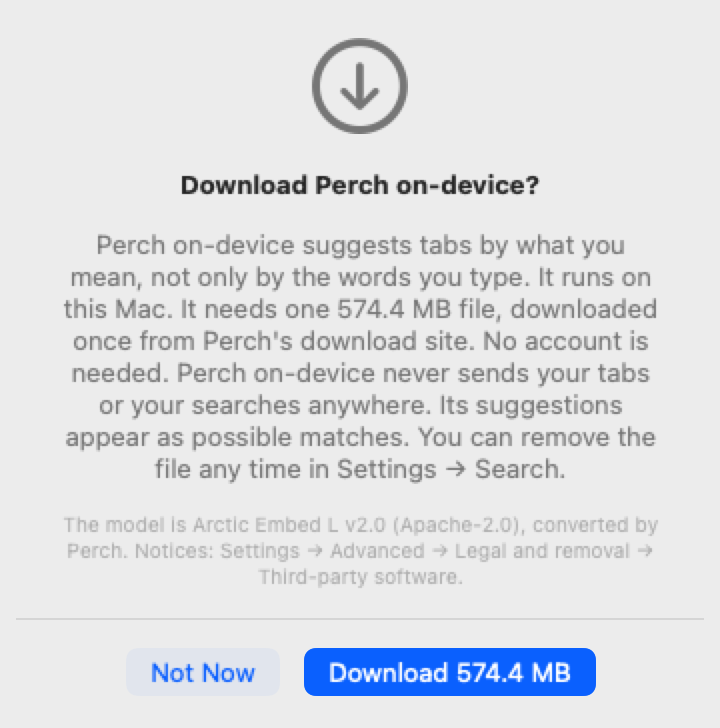
Perch works on macOS 15 and later. AI search needs Perch on-device, Apple's on-device model, or your own key. Pick a provider once in Settings → Search. Perch on-device and Apple's on-device search both run entirely on your Mac and send nothing anywhere; the model is Snowflake Arctic Embed L v2.0 (Apache-2.0), converted by Perch. On a Mac that can run both, Perch on-device and Apple Intelligence appear as separate cards under On this Mac in Settings → Search; click the card you want. OpenAI or Claude get your tab titles and addresses — never the text of your pages. OpenAI's ordinary chat step reads at most 15 candidates, but its embedding step can send the query and uncached labels from up to 400 candidates. Labels contain title, site name and page path — never the part of an address after the ? or the #. Ordinary search uses the resolved provider; a missing hosted key can still fall back to an on-device engine. On a Mac where no on-device engine can answer (Apple Intelligence off or unavailable, and Perch on-device not downloaded), the Apple Intelligence card is greyed out in Settings and setup, and a fresh install defaults to OpenAI instead — keyword search still works without a key. Search harder sends up to 400 candidates to OpenAI; it is available only when OpenAI is the selected provider. Sorting by topic uses only the selected provider — Perch on-device, Jev and Apple Intelligence cannot sort by topic; choose OpenAI, Anthropic or an OpenAI-compatible provider in Settings to enable it.
Both palette AI searches leave out tabs known to be private and tabs the browser has withheld. Replies cannot restore a tab after it closes, becomes private or changes its page; changing the query also cancels that answer. Cancellation cannot recall information already sent. Safari tabs (basic) cannot identify private windows, so their pages remain eligible in basic mode; turn that connection off or use the Safari extension to keep them out. Topic consent is checked before its engine reads a saved key. Malformed embedding replies fail safely; keyword search remains available. On a Mac running a version of Apple Intelligence that Perch has not tested, a quick self-check runs once after your first AI search; if the model does not pass, Perch uses keyword search and tells you in one line. A macOS or model update triggers a recheck. Nothing leaves your Mac. Perch on-device can be removed in Settings → Search; removing it frees the disk space and search falls back to Apple Intelligence or keyword search. Third-party licence notices: Settings → Advanced → Third-party software.
Pictures
A hundred titles look alike. A hundred pictures don't.
⌥ Option+⇧ Shift+Space
- Or turn on a hot corner in Settings → Advanced → Duplicates and Overview and rest the pointer there for a moment. A new install starts with it off; if you used Perch before, the bottom-right corner you had stays.
- Start typing to narrow the grid down.
- Under each title, a second line says which site the tab is on and when you last used it —
github.com · 3d ago. - Click a picture to go there, or use the arrow keys and ↩. esc and nothing happened.
- Hold ⌘ or ⇧ while clicking to mark several pictures at once — or press Space on the highlighted one — then ⌫ closes all of them together, with one eight-second Reopen all for the whole batch.
- A tab with no picture yet shows its site's colour, the site's icon in the corner and, in large type, the words that tell it apart from the site's other tabs — the pull request's name rather than the repository they share. A file on your Mac shows a document icon, its folder's name in the top corner and the page's own title, coloured like the other files in that folder. If Perch has seen that file before, a short topic line appears just below the icon. Hover the card's picture area to see why there's no picture: not taken yet, the tab is asleep, or the browser doesn't allow one.
- Perch takes a picture the next time you look at a tab.
- Point at a picture and click the crossed-out eye beside its × to stop Perch remembering that site, with Undo at the foot of the window; VoiceOver offers it as one of the picture's actions. It appears only while Perch is remembering pages.
- With two profiles connected, each one's name heads its windows. Double-click the name, or click the pencil beside it, to rename it — Chrome 2 to Work — and press ↩; the new name shows everywhere at once, with Undo. The full list of names stays in Settings → Advanced → Browsers.
- Rest the pointer on a picture and a larger view opens beside it — the whole picture, a file on your Mac shown from the file itself, or the full title and address of a page with no picture yet. ⌘Y opens it for the highlighted picture, esc closes it, and a click on it goes to the tab.
- Tab moves between the search field, the chips, the row above the grid and the pictures — no mouse needed for any of it.
Taken by the extension after you visit a tab, stored on this Mac, never uploaded. Clear them any time in Settings → Advanced → Duplicates and Overview.
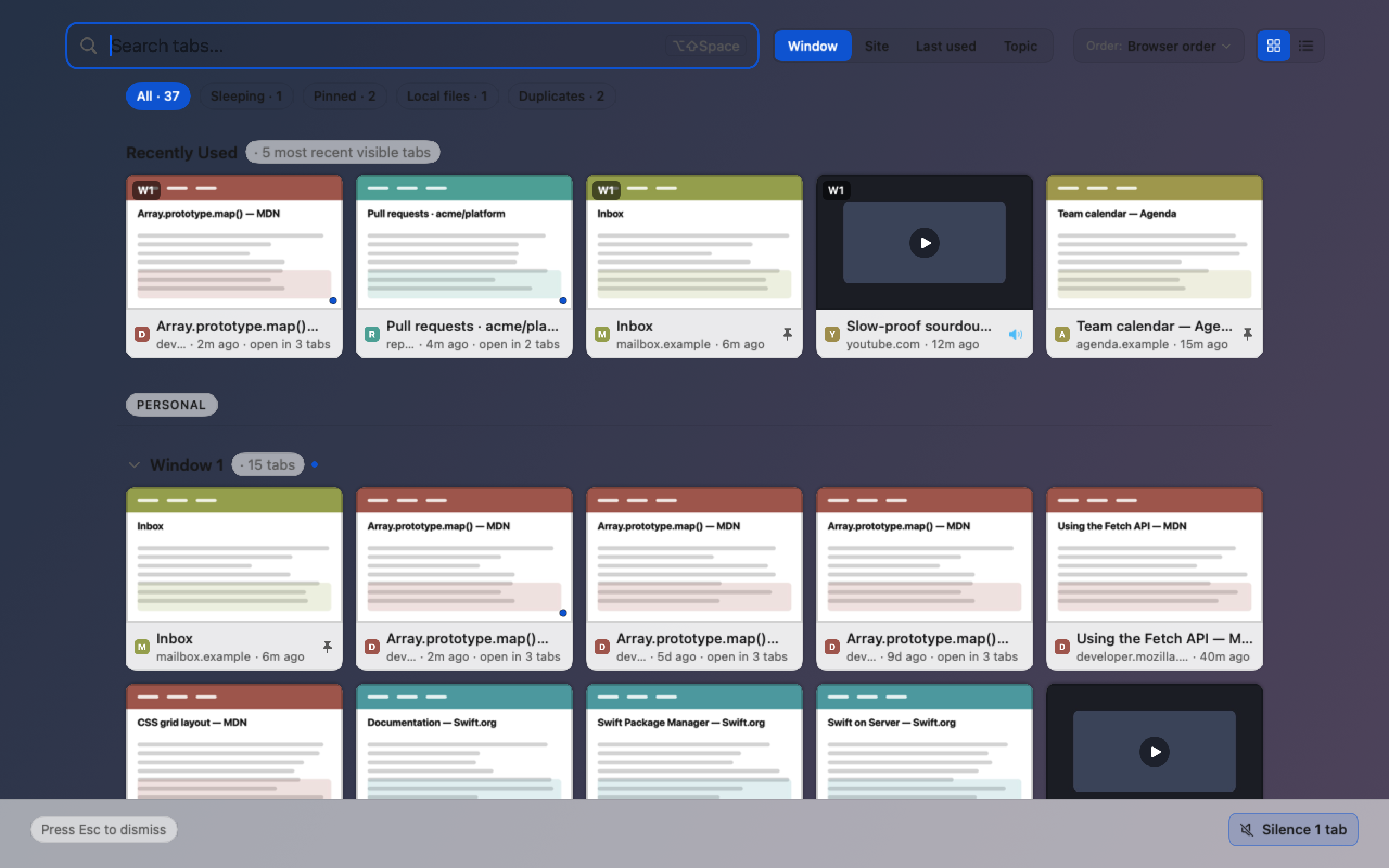
The strip
Group it differently, order it differently, or hide most of it
- Window or Site. Site puts every YouTube tab in one section, across every window and both profiles — and each picture then carries a small W3 saying which window it came from, when you have more than one window, so nothing is lost by the regrouping.
- Last used sorts the same pictures under Today, Yesterday, Earlier this week, Over a week ago and Over a month ago, with the badges kept. Order decides which heading comes first.
- Topic sorts the same pictures under what you were doing; see Topics below.
- Order: as in the tab strip, last visit first, or oldest visit first.
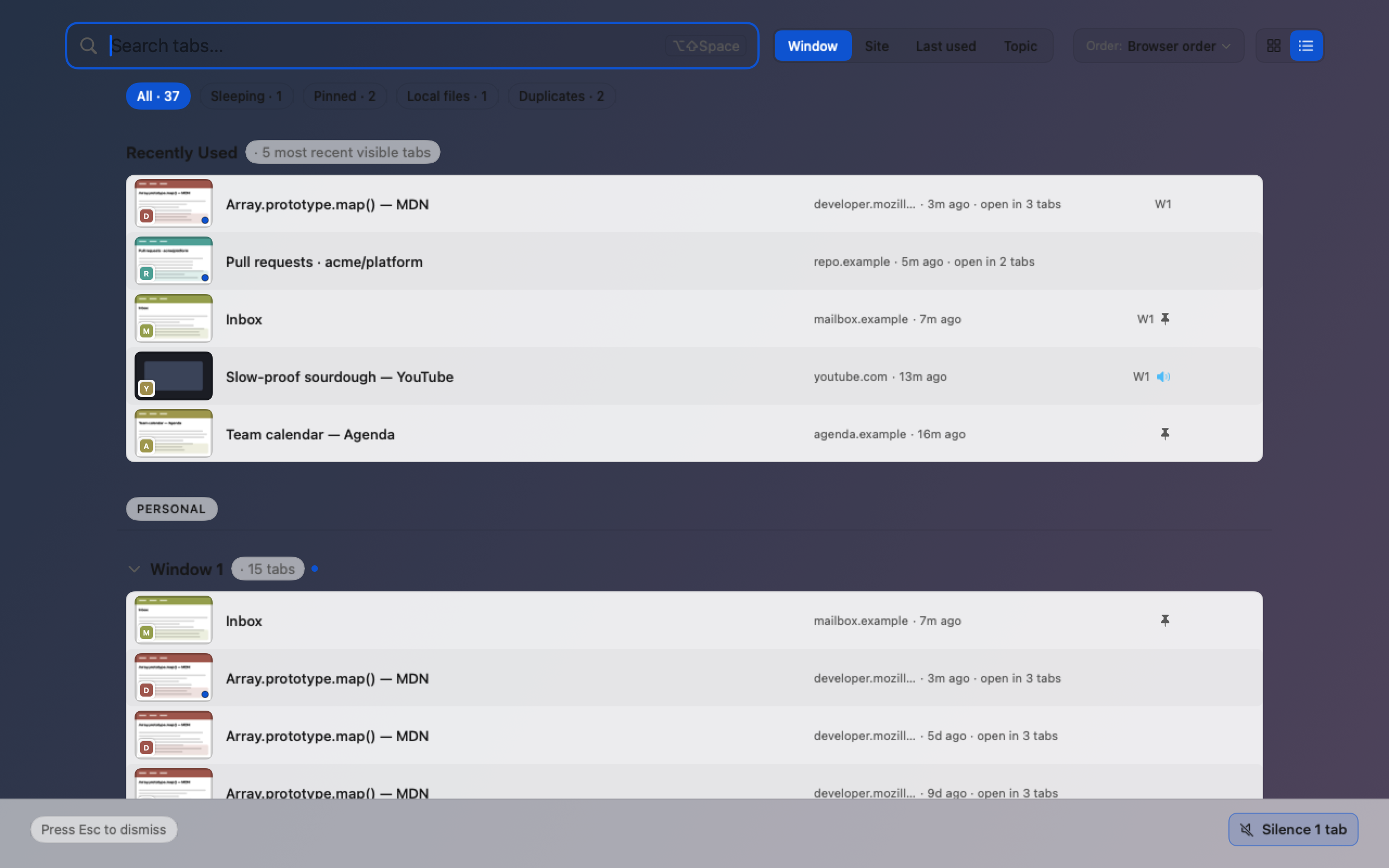
- The two buttons at the end of the row switch the pictures to a list and back: one row per tab, with a small picture, the whole title, the site — or, for a file on your Mac, its folder rather than its file name — and when you last used it, and marks for pinned, playing and sleeping tabs. A row shows a picture specific to that page when one exists — a video's own frame, or the page's own share image, so long as it isn't the same picture every page on that site uses — even for a tab Perch has never taken a screenshot of, and that picture survives a restart. Failing that, a row with a screenshot shows a crop around its page's own main heading — so you can read it, rather than squint at a whole page shrunk down — or, when there's no heading to crop to, the screenshot whole. A row with no picture at all shows the one word that tells it apart from its site's other tabs, large, on the site's colour, with a small badge in the corner for the site's logo, its favicon, or the file's type. The headings, chips and search work the same way; ↑ ↓ move from row to row, ↩ opens one, and resting the pointer on a row's picture opens the larger view beside it. Perch remembers your choice. On a very wide screen the list stops at a comfortable width and centres, rather than stretching from edge to edge. Duplicates are always shown as pictures, side by side.
- The chips below carry live counts. The number is what you will see when you press one, so hiding things never becomes forgetting them.
- When more than one browser is connected, a chip for each one appears too — Chrome, Safari — so seeing only one browser's tabs is one click away, in whatever grouping you're already using. With one browser connected the row is unchanged.
- From the keyboard: Tab to reach the chips, Group or Order, then ← → to change the selection — it takes effect right away, same as a click.
There is no "newest opened" order, and that is deliberate: Chrome forgets when a tab was opened the moment it quits, so that order would be a confident, uniform, wrong answer. The menu says so where you would look for it.

Topics
Sorted by what you were doing, not by site
- Pick Topic in the Group row. Picking it sends nothing.
- If your search model can't sort by topic, Perch says so and offers two ways: Perch Cloud, Perch's paid version, coming later, with Learn More…, and your own AI provider, with Set Up…, which opens Settings → Search; it then becomes your AI search too. Learn More… says what the paid version will do and sends nothing; nothing can be bought yet. Group by Window goes back to windows. Not Now shrinks it to one line, Topic sorting needs Perch Cloud, tagged Paid, or your own key., with Learn More… and Set Up… beside it; it stays that way until sorting works. Once a provider that can sort is chosen, Settings says Topic sorting is set up., and Open Tab Overview takes you back.
- If your topics came from a provider you no longer use, a card above them says so, offers Perch Cloud and the way back to your own key, and Not Now shrinks it to one line.
- The first time, Perch says what it would send and to whom: each tab's title and address, which window and profile it is in as a number, whether it is pinned, and roughly when you last used it. Never the text of your pages. Press Agree and sort 142 tabs, or Not Now to go back.
- Once you agree, Perch says Press Sort to group your tabs by topic. with the Sort 142 tabs button right beside it, and the grid says Your tabs are not sorted yet. above the pictures — nothing sorts until you press it.
- While it sorts, a card shows the two steps (naming the topics, then placing your tabs), says it usually takes under 30 seconds, and offers Cancel, or press Esc. The tabs being sorted dim until it is done.
- Up to ten topics appear, named for what you were doing, with Not in a topic last for tabs that didn't clearly fit or were not sent. It is a suggestion: Undo puts everything back.
- Nothing changes in your browser. No tab moves, no group is made, nothing closes.
- Later, Sort 12 new tabs sorts only the tabs opened since, and Re-sort all sorts everything again. Nothing ever sorts by itself.
- The chips and the search narrow what you see inside each topic. They never change what is sorted.
- Right-click a picture, or click the … in its corner, for Move to, Keep in and Remove from, or select it with the arrow keys and press ⌘⇧M. Right-click a heading to merge its topic into another, keep all of it, or remove it. Under Not in a topic, Why here? says why a picture was left out.
- Pick a topic and the picture glides there, the grid scrolling to that topic first if it is out of view. With Reduce Motion on, it fades there instead.
- A move changes only the tabs you moved, and later sorts leave them where you put them. Keep in does the same without moving anything.
- A tick in a circle marks a tab you placed, and new marks one that joined a topic since you last looked. A tab the sort placed carries no mark. After Perch restarts, a page you placed stays in its topic with the same tick, and so does a copy of it you open later.
- ⌘Z, with a picture selected, undoes your last change to the topics, back to the sort itself, and a moved picture glides back. In the search field it still undoes your typing.
- Double-click a topic's name, or click the pencil beside it, to rename it. The name is yours from then on: later sorts keep it word for word, and no tab moves.
- New topic…, under Move to, starts a topic with the tab you are moving. Ten is the most there can be, counting yours.
- From now on a sort also sends the names you gave your topics and your rules, so it can keep them. The consent panel and Settings say so.
- Consent is asked here, the first time you sort, and nowhere else. Settings → Advanced → Data lists each provider you allowed, such as Sort by topic may use OpenAI, with Stop Allowing (and Undo); the next sort then asks again.
- After a move, Perch asks once, at the bottom: Just this tab, and its page after a restart, or Always put booking.com here. Doing nothing chooses the first: the tab stays where you put it, and if Perch or the browser restarts, the page does. Choose Always and every booking.com tab goes to that topic, now and whenever you open one, with no sort needed. A small signpost marks the tabs a rule placed.
- A site that holds many different things gets a rule for one part of it:
github.com/yourname, not all of GitHub. A Google Docs or Notion page gets no Always choice at all. - Every rule is listed in Settings → Advanced → Data → Sort by topic. Remove one with ⊖ or ⌫, or all of them with Remove All Rules…. Removing a rule moves no tab.
Sorting uses your own AI provider, the one chosen in Settings → Search: OpenAI, Anthropic, or an OpenAI-compatible server you run yourself. Jev and the on-device models can't name topics. Perch asks before the first sort with each provider. Turn it off, or forget your topics, in Settings → Advanced → Data → Sort by topic.
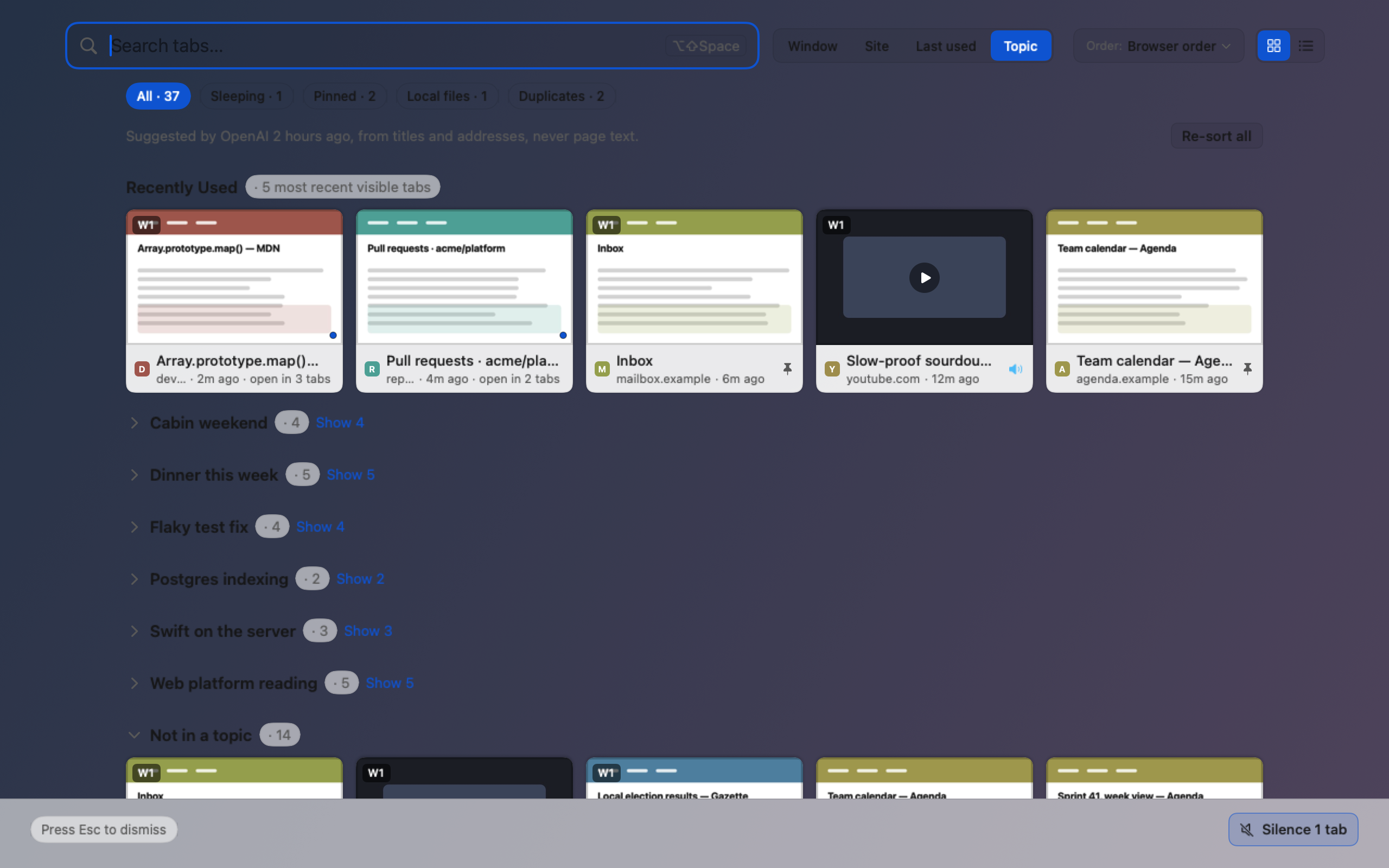
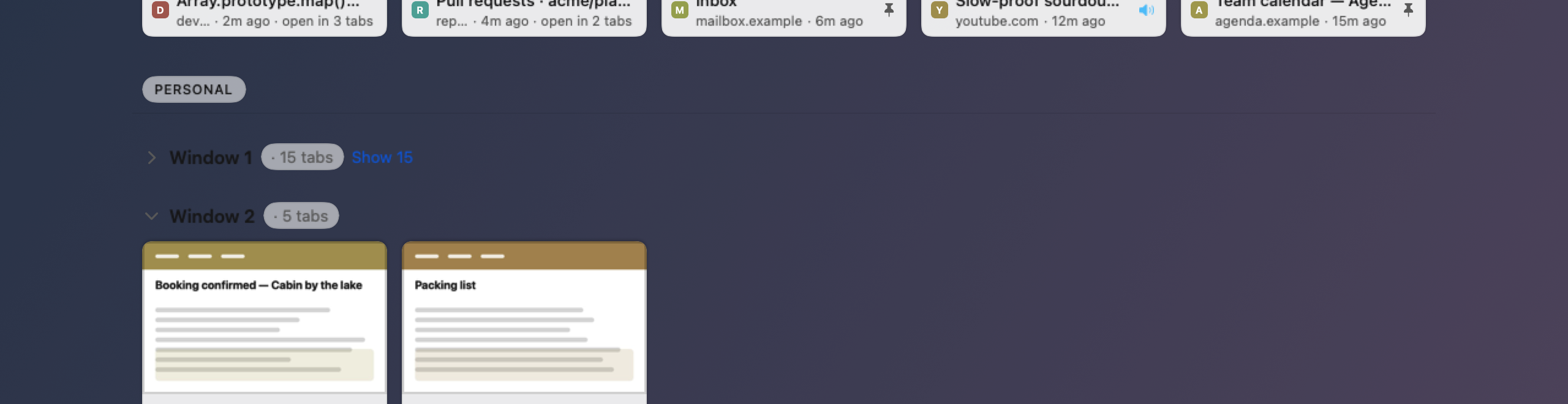
Recently Used
The last few tabs you touched, before you sort anything
- At the top of the grid, whichever grouping you're in: the five tabs you used most recently, newest first, from every window and profile. Each says when you last used it —
2m ago— and carries its W2 when you have more than one window. - Click one to go straight back to it. Everything else a picture does works here too, and every tab still has its own place in the sections below.
- It steps aside while you search, pick a chip or look at Duplicates, and comes back when you return to All.
- Chosen once, when the overview opens, so it can't move under a pointer already reaching for it. Close a tab from it and the row gets shorter; nothing takes its place until the next time you open the overview.
Only a time your browser reports counts. A tab it can't say anything about — as can happen after the browser restarts, and always with Safari tabs (basic) — is never guessed into the row, and if no tab has a time the row isn't drawn.
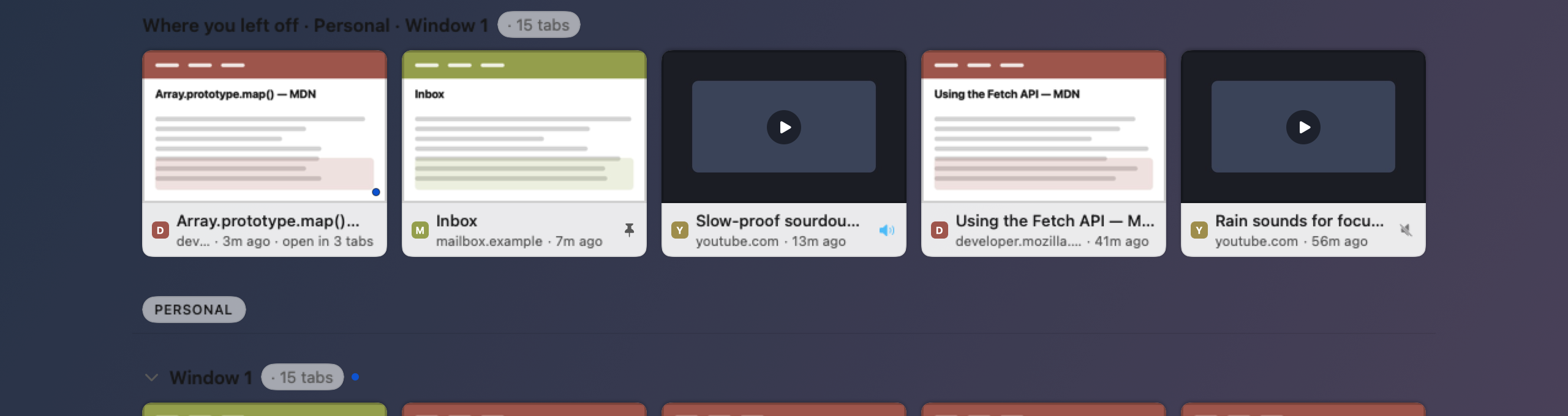
Where you left off
The window you were in, before the interruption
- Under Window only, and only when there's no Recently Used row to show — the two would hold the same tabs.
- Chosen once, when the overview opens, and never re-picked while it is up — so it cannot move under a pointer already reaching for it.
- It names the window, and the profile too when both are connected, because window numbers start again in each.
If Chrome remembers no last visit — which is every tab, on the first launch after Chrome restarts — the row is not drawn at all. An empty guess would be worse than nothing.
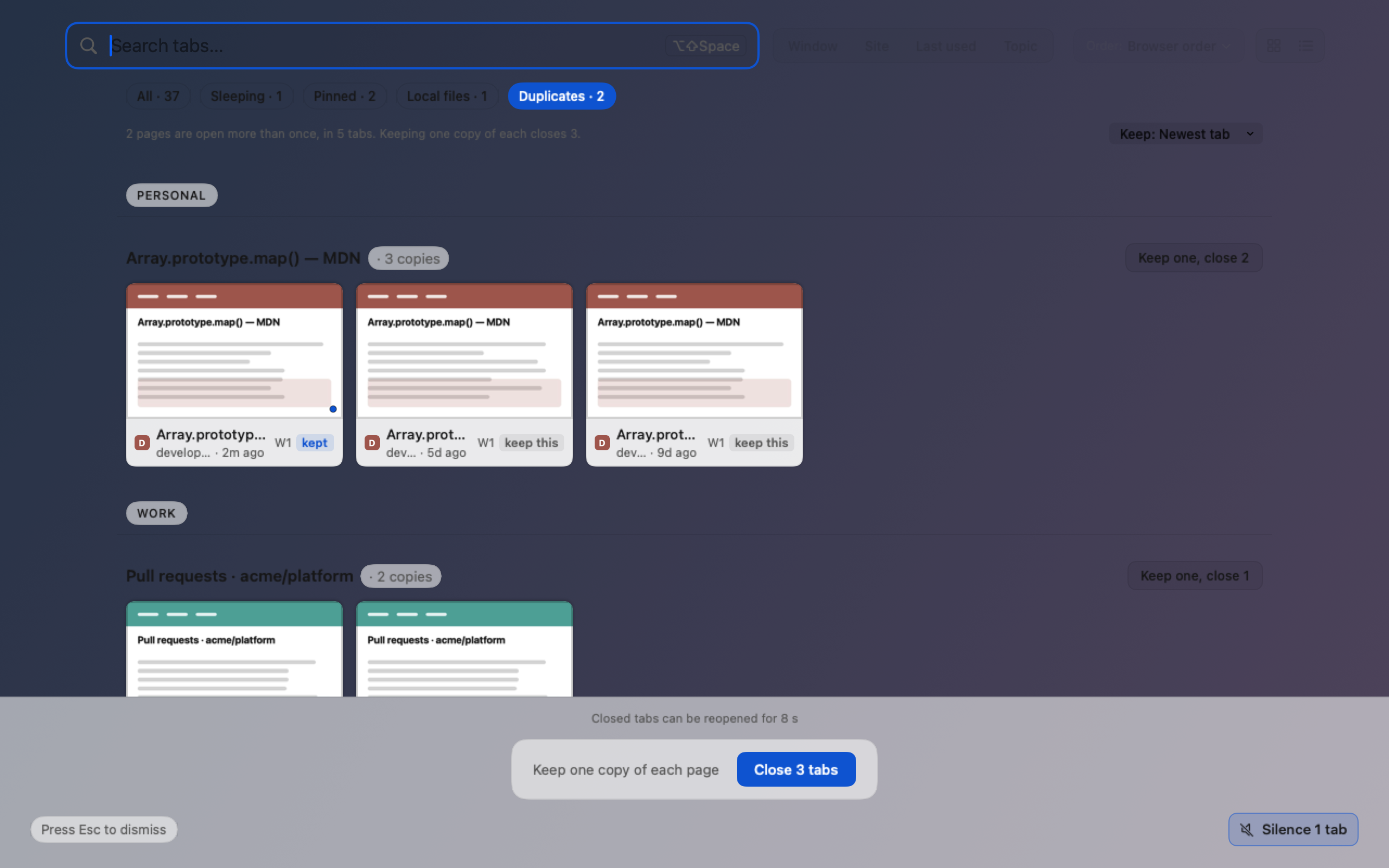
Duplicates, in the grid
Every copy, side by side, before anything closes
- You can spot them before you get here: in the grid, and in search, a card whose page is open in several tabs ends
open in 3 tabs. While you are searching that number still counts every copy, even the ones the search hides, so it can be larger than the set this screen shows. - Press the Duplicates chip. Each page you have open twice becomes one row of its copies.
- One copy stays — chosen by the Keep: menu at the end of the line above the copies: Newest tab (a new install's choice), Active tab, else newest or Last used tab. Pick one and every set changes at once, with Undo at the foot; a choice you made in Settings before keeps working. The copy that stays is tagged last used under Last used tab, otherwise kept. Click another copy's keep this to keep that one instead; the button's count follows immediately. Perch remembers the kind of copy you kept — the last used, the active one or the newest — for that site, so next time, even after a restart, its sets start with the same kind of copy while other sites follow Keep:. Only the site's name and the choice are kept, on this Mac, and Forget everything clears them.
- A pinned copy is shown, tagged pinned, and never counted or closed.
- On the basic connections, Chrome's and Safari's, Perch can't see which tabs are pinned, so a set there says 4 copies open: review and close: its button, and the bar at the foot, first show every copy they'd close. The leftmost copy in each window, where a pinned tab would sit, starts unticked; tick what you want closed, then choose Close. ↩ Return closes only once you've moved to that button with ⇥ Tab, and esc closes nothing.
- If your Safari extension doesn't say which tabs are pinned, Perch can't close Safari tabs at all, so a set there offers no close and says 4 copies open: close them in Safari. Click a copy to go to it, then press ⌘ + W.
- The bar at the foot closes them all at once. From five tabs up it asks first, in the window — a count of fourteen is not a visible list: ↩ Return closes them, esc closes nothing. Fewer than five close straight away, with Reopen as the net.
- From the keyboard, with a copy selected: ⌘ + K keeps that copy, ⌘ + ⌫ closes just its set, and ⌘ + ⇧ + ⌫ is the bar at the foot — every set at once.
Copies are matched inside one profile, so the same page in work Chrome and personal Chrome is not a duplicate. Two addresses that differ only by a #section, a trailing slash, www. or a tracking parameter count as the same page; that rule is built in, so there is nothing to set. This is the one door to duplicates now, and the one place the Keep: choice is made — where you can see the copies it decides between.

Eight seconds, from the last close
Close several in a row and they join one offer. Dismiss the overview and the clock keeps running — reopen it inside the eight seconds and the offer is still there. If Reopen can't put the pages back — say macOS stopped to ask for permission — they stay on offer until you have opened the overview again and dismissed it.
It says what it cannot do
The pages come back in Chrome's default profile, in a new window. Scroll position, pinned state, tab groups and anything you had typed do not. The tooltip says so before you press it.
Pinned tabs refuse
Press ⌫ on a pinned picture and the pin brightens instead: Pinned tabs can't be closed here. Nothing is sent to Chrome.
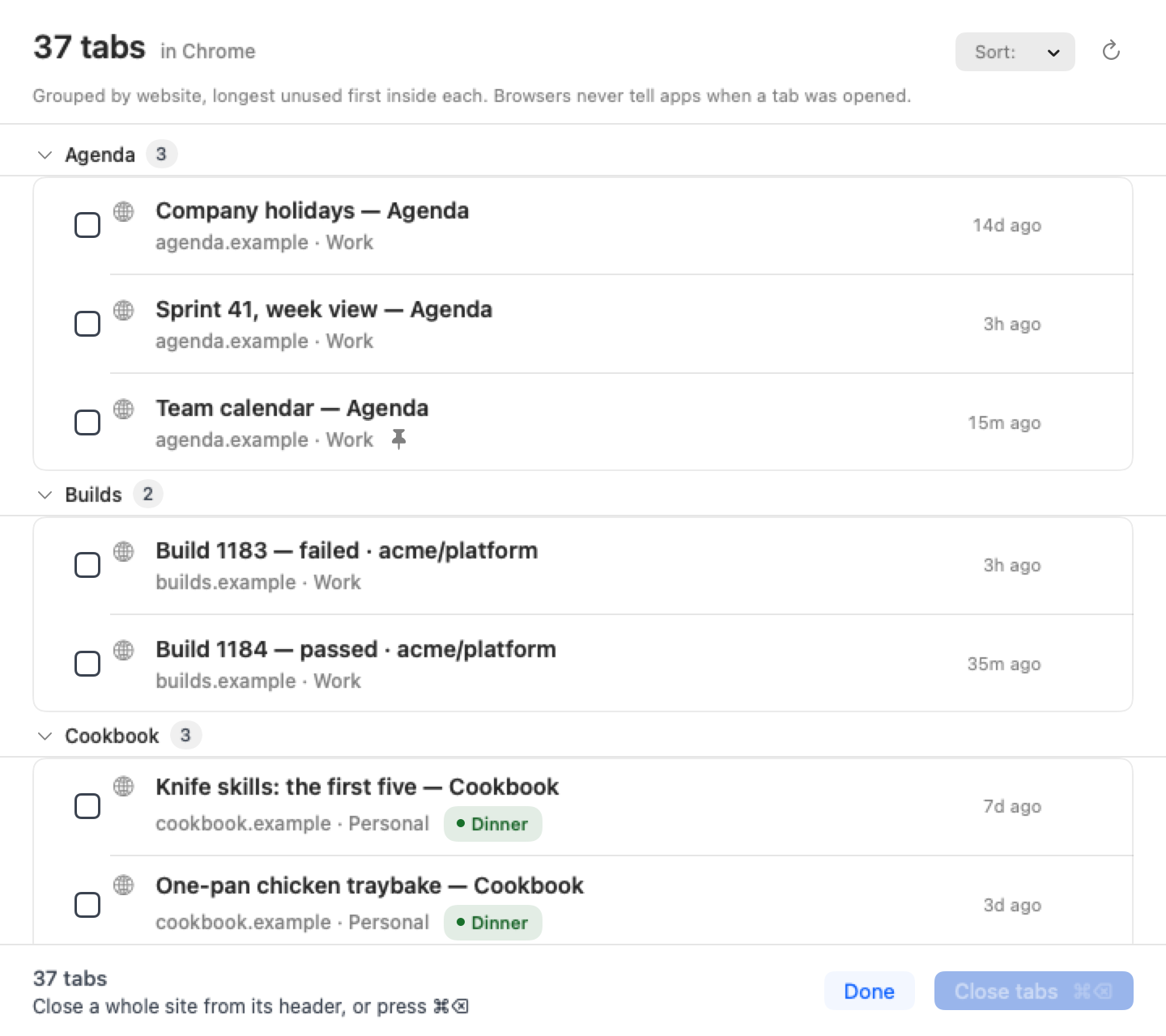
Tidy up
Close twelve tabs in one gesture
⌥ Option+⇧ Shift+C
- Sort by Longest unused, Recently used, or Site (A–Z).
- Sorted by time, the list sits under headings — Today, Yesterday, Earlier this week, Over a week ago, Over a month ago. Point at one and press Select group to select its tabs — never pinned ones, ones playing sound, or the tab a window is showing — then close them with the button.
- Point at a row, click the close button. Gone.
- ⇧- or ⌘-click a dozen, then press the button that names the count.
- Unsure about one? ↩ shows it in Chrome and closes nothing.
Clearing a whole site asks you to confirm first, because most of those rows are scrolled off where you cannot see them. On Chrome's basic (AppleScript) connection, which can't see pinned tabs, it shows you the site's tabs with none ticked: tick the ones to close (or Select All), then close them. Closed one by mistake? ⌘ + ⇧ + T in Chrome brings it back.
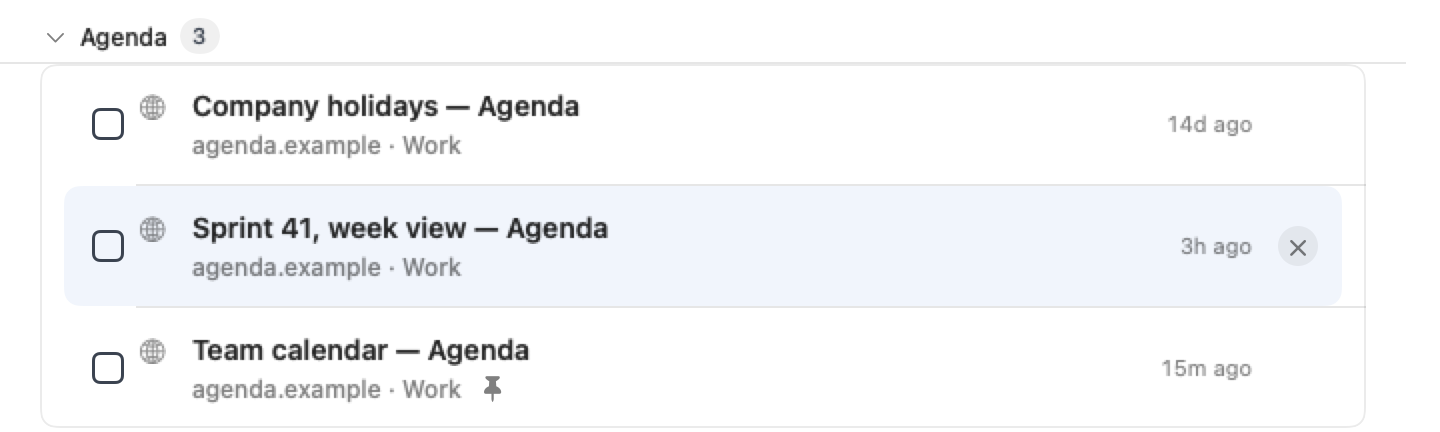



Memory
Free up memory when your Mac is struggling
- Only while macOS reports high memory pressure, the menu shows one quiet line: how much memory your browsers are using and how many heavy sites are open. Perch never frees or closes a tab on its own.
- The menu's Memory section shows Heavy Tabs…. Under pressure it shows the browsers' memory total and Free up memory… instead.
- The Heavy Tabs window has two segments: Open tabs ranks tabs by cost — video sites, web apps, many-tab sites — and groups them by domain. Saved tabs lists tabs you closed and saved.
- Select the tabs you want to free, then press Free up 5 tabs. Active, pinned, audible and edited-form tabs are protected.
- Freed 5 tabs. They reload when you click them. Changed your mind? Undo reloads them.
- Or choose Close and save 5 tabs to close and save them for later. YouTube tabs remember their playback position. Closed 5 tabs and saved them for later.
- On the basic (AppleScript) connections a tab can't be freed, and its row offers Show, which brings the tab forward in its browser. On Chrome's, Close and save for later works on the tabs you tick, each checked first; on Safari's the row says Needs the Perch companion, and you close the tab in Safari with ⌘ + W.
- The Saved for later segment groups tabs by day (Today, Yesterday, Earlier). Bring back reopens one; Bring back all 12… reopens the lot after you confirm. YouTube tabs remember their playback position.
- When pressure is back to normal and saved tabs exist, the menu shows Memory is back to normal. and Memory is back to normal. Bring back your 12 saved tabs?
Safari can't free a tab and keep it open (it has no way to unload a tab), so with the Safari extension use Close and save for later instead. The basic (AppleScript) connections can't free tabs; Chrome's can close and save them, and Safari's needs the Perch companion extension. Private and incognito tabs, and Safari basic tabs, are never saved. A tab that can't resume says so: it starts from the top. Forgetting a site, the last hour, today or everything in Memory also clears the matching saved tabs.
Groups
Twelve YouTube tabs become one group
- Tab Overview → Group: Site, then Group Tabs in the bar under the grid.
- They become Chrome's own tab groups, so you can collapse them.
- Ungroup All Tabs, from the menu, puts everything back. No tab is closed.
A group is made only when a site has enough tabs to be worth it — two by default. Pinned tabs are left alone.
In Firefox, tab groups need Firefox 139 or later. On an older Firefox, Group Tabs is not offered for its tabs, and Ungroup All Tabs leaves it alone.

Sound
Something is talking. You don't know which tab.
⌥ Option+⇧ Shift+M
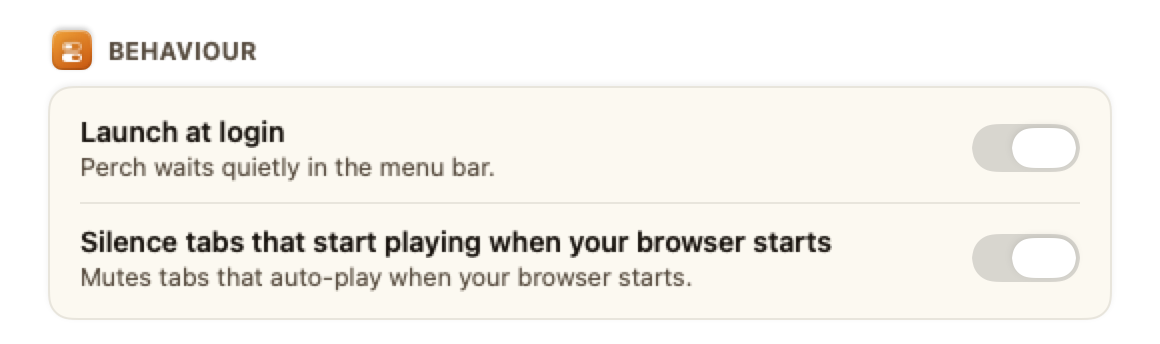
- Mutes and pauses every tab in every profile. Closes nothing.
- Unmute All Tabs undoes it, and counts them. It plays again the videos Silence All paused, never one you paused yourself. If your browser won't let one start, Perch says so, and you press play in its tab.
- Better: the first minute after Chrome starts is already handled.
Muting always silences a tab. Actually pausing it cannot reach Chrome's own pages, the built-in PDF viewer or the Web Store — those go quiet but keep playing.
A tab you've muted that is still playing counts as muted, not playing: the menu's playing list, the palette's count and the Tab Overview's Silence button leave it out, and Unmute All Tabs counts it.
On Chrome's basic connection, which can't mute a tab, the menu's row reads Silence Page Media: with Chrome's Allow JavaScript from Apple Events on, it mutes and pauses the video and audio in the pages Perch has seen, and Unmute Page Media unmutes only what Perch muted. Safari's basic connection can't do either; its row says so.
Perch counts a tab as muted only once your browser says it is. If the browser leaves a tab as it was, the speaker's line says so (Safari didn't mute this tab.), and Silence All ends with how many tabs didn't mute.
In the Tab Overview, Silence 2 tabs mutes and pauses those two tabs and nothing else. Silence All Tabs in the menu, and ⌥⇧M, still mean every tab.
Diagram · the menu's sound lines
- 2 tabs playing
- ↳ each one named, one per line
- Silence All Tabs ⌥⇧M
- Unmute All Tabs (2)
Click a name in the menu to jump straight to that tab.
Off by default
Ask Claude Code or Codex about your tabs
If you work in a terminal: “which tab has the Stripe docs?”, answered in one call. If you don't, skip this — nothing here is on, and nothing will turn itself on.
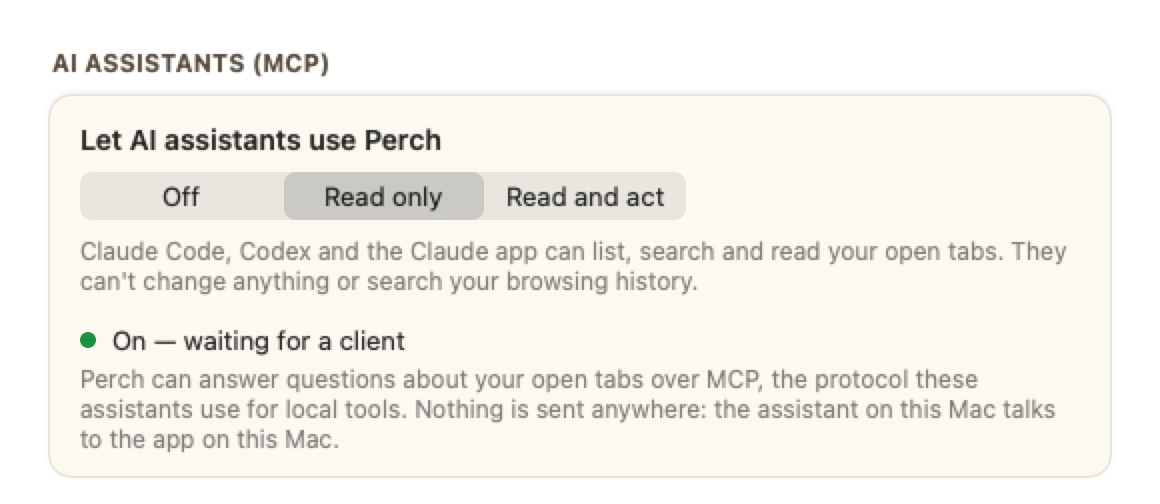
- Settings → Advanced → AI assistants → Let AI assistants use Perch → Read only or Read and act.
- Read only lets them list, search and read your open tabs. They can't change anything or search your browsing history.
- Read and act also lets them search your browsing history, where each browser allows it, and switch to, silence, close and group tabs.
- Closing always shows you the list first, and never closes a pinned tab. On Chrome's AppleScript connection, which can't see pinned tabs, an assistant closes only the tabs it names, each checked first; asked to close duplicates there, it is shown the copies and closes the ones it names.
- Read and act also lets an assistant close your duplicate tabs (
dedupe_tabs) and group your tabs by site (group_tabs_by_site) the way Perch does: it keeps the copy and uses the group size you chose in Settings, and adds to a group of that name already in the window. Both show you the plan first. - Every tab an assistant sees says which browser it is in. On the AppleScript connection it can still list, find, switch to, reload and open tabs, and on Chrome close the tabs it names (duplicates too, by name); muting is refused with a sentence saying why.
- Without the companion, assistants can read the Chrome pages you've looked at, once Chrome's View › Developer › Allow JavaScript from Apple Events is on: page text, outline, Markdown and your selection, the same as with the companion. A tab you haven't switched to since Perch started is left unread (it may be asleep) and says so; switch to it once and ask again. Safari's basic connection never reads a page.
Nothing goes over the internet: the assistant on this Mac talks to the app on this Mac through a socket in your home folder.
Take the command from the app, not from here
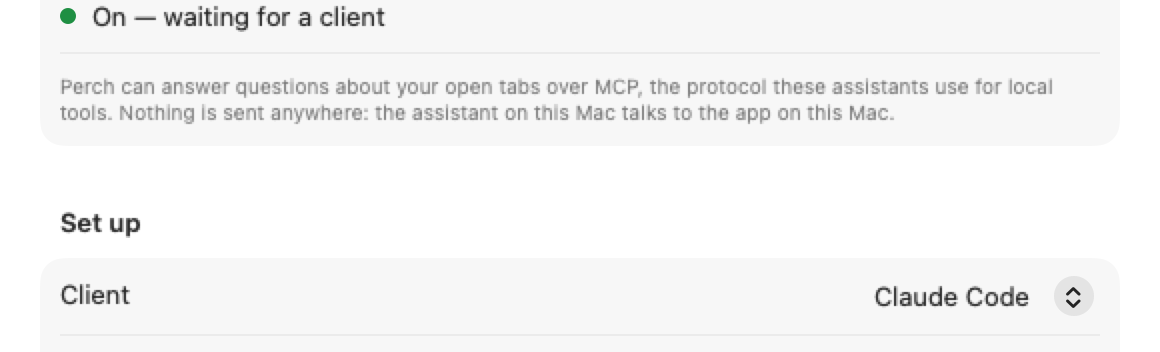
A public page cannot know where your copy lives. This is the shape of it, so you recognise the real one when you see it:
The shape, not the command
claude mcp add --scope user perch -- \
  "/Applications/Perch.app/Contents/Helpers/PerchMCPHost"
Then quit and reopen your client. One that was already running has its tool list loaded and will not notice — which looks exactly like a broken install.
Command line
Your tabs from the terminal
If you work in a terminal, or let a coding agent work there, perch reaches the same tabs the assistants above do, through the same switches. It talks to the running app and never starts it. If you don't use a terminal, skip this.
- Build it once in your copy of Perch's source:
swift build --product perch. The command is then.build/debug/perch. - Choose a level. Settings → Advanced → AI assistants → Let AI assistants use Perch: Off, Read only (list, search and read your open tabs) or Read and act (also search your browsing history where the browser allows it, and switch to, silence, close and group tabs). A setting you made with the older switches is kept, and shows no level until you choose one.
- List your tabs:
perch tabs. Each row starts with the tab's ref, the name the other commands take.
perch find rate limitsfinds tabs by title and address, best match first. Add--activateto bring the best one forward.perch closeandperch groupchange nothing at first: they show what they would do and print the one command that goes ahead, naming exactly those tabs. Run that command, or add--confirm, to act. Pinned tabs are never closed or grouped.perch dedupeandperch group-by-siteclose duplicates and group by site the same way, and act only with--confirm. They ask the app to plan, so they keep the copy and use the group size you chose in Settings;--policyand--minchange those for one run.- Selectors.
tabs,close,group,read,outlineandmdalso take--url,--title,--browser,--profile,--window,--idle(30m,12h,7dor2w) and--audiblein place of refs —perch close --url github.com --idle 7dpreviews every matching tab idle that long, and the command it prints to confirm always names those exact tabs, never the selector. Give neither a selector nor a ref, or give both, and it is a usage error. - In a terminal you get a table. Piped into another program you get the JSON an assistant gets, so a script or
jqcan read it.--plaingives tab-separated rows, and--fields tabRef,titleonly the fields you name. - Each outcome has its own exit code: 4 for a preview, 5 when Perch is not running, 6 when its switch is off, 7 when a switch or the browser stands in the way.
perch --helplists them all, with every command.
Reading pages. perch read prints a tab's text and perch md its main content as Markdown, as your browser has the page open, signed in as you. Add -o reading/ and each page goes into its own file there, named after its ref, with only the file names printed. perch outline lists a page's headings and links, and perch selection prints what you have selected. perch screenshot with -o shot.png saves a picture of the tab showing in its window; for a tab behind another it tells you to run perch activate first, and never brings one forward itself. A sleeping tab is named, with the reason, rather than read as a blank page. perch recall searches the pages Perch remembered, --since 7d for the last week, and perch history searches your browser's history once Also let them search your browsing history is on. Piped into another program, what a page says is marked untrusted: text to read, never instructions to follow.
Opening and reloading. perch open opens up to ten addresses in new tabs — in the current window, one you choose, or a new one with --window new — and never needs --confirm, because opening a tab displaces nothing. perch open-visit takes the address a perch recall result carries and either brings the page forward or opens it fresh. perch reload reloads a tab, even a sleeping one, and perch reopen puts back whatever you just closed with --confirm, while its short window is still open. perch silence mutes and pauses whatever is making noise. To check a page once for a condition, use perch assert.
Checking a page. perch check REF --out evidence/ captures a tab as a screenshot, an outline and its text, all written into that folder, with the page's address, title and browser; add --expect "Payment successful" and it also answers pass or fail. perch assert REF --text "Payment successful" (or --absent, --regex, --below label:threshold, --above label:threshold) reads the page once and answers the same way with no files at all — handy for a script that just needs to know. Either one answers "uncertain" rather than guessing when the page can't be read at all: a sleeping tab, or a route that refuses it.
Smoke testing, comparing and exporting. perch smoke urls.txt opens every address a file lists, waits for each page to load, and fails one whose text shows something you'd rather it didn't (--expect-absent); add --close-after and it tidies up after itself, closing exactly the tabs it opened. perch diff REF --against saved.md (or a perch check folder) compares a tab against what you saved earlier and says what changed. perch export --format md or --format json writes your open tabs out, grouped by window, profile or site — nothing about your tab groups is ever in it, the same as everywhere else perch lists your tabs.
History access is optional in Chrome and Firefox. Open the Perch companion popup in each profile and choose Allow history access, then set Let AI assistants use Perch to Read and act in Perch Settings; Read only does not search history. Denial leaves ordinary tab search working; the popup can remove access again. Pending searches discard collected results when the app switch or browser permission is observed off. Extension permission epochs reject pending remove/add cycles, but brief off/on changes of the app switch are not detected. A read already sent cannot be recalled, nor can results already returned to another program be retracted. An older companion with unverifiable access needs updating. Safari and the basic connections still cannot search history; Perch does not filter history results by an origin denylist.
Nothing goes over the internet: perch talks to the app on this Mac through the same socket in your home folder the assistants use.
Safari
Safari tabs: choose basic or enable the Safari extension
Use Safari as well as Chrome? Perch reaches Safari two ways. Basic mode stays off on a fresh install until you accept the disclosure beside its setup button. It lists Safari tabs and lets you switch to them; existing saved choices are preserved. Turn on Perch's Safari extension and Safari tabs get nearly everything Chrome's do. The extension takes over from basic mode as soon as it connects.
Basic mode: off until accepted on a fresh install
- After you accept and enable Safari basic, macOS may ask whether Perch may control Safari. Click OK to grant access. If you clicked Don't Allow, Settings shows a status line under the switch; change it in System Settings → Privacy & Security → Automation → Perch.
- Your Safari tabs turn up in the palette and the Tab Overview, and choosing one brings Safari forward with that tab showing. Perch asks Safari at most every five seconds, so a tab you have just opened there can take that long to appear; an open Perch window follows Safari's tabs on its own within about five seconds.
- Perch ranks Safari tabs by when it first saw them, so they sit in the palette's default list and the Tab Overview's day groups the same way your Chrome tabs do, instead of only turning up when you search for them.
- Don't want Safari's tabs? Settings → Search → Privacy → Show Safari tabs (basic) — turn it off and every Safari tab disappears from the palette and the Tab Overview.
- “Basic” because Safari tells Perch only each tab's address, title and position. So Safari rows have no mute or group buttons, no pictures, and no page text. Their × closes the tab you point at, after checking it's still the same page in the same place (if it changed, it stays open and Perch says so); Tidy Up's Close all and Duplicates list the tabs first and close only the ones you tick. Reopen puts a page back only into the window it came from, since that window may be private, so a page whose window has since closed doesn't come back. In the list layout, a Safari basic row always draws a plain tinted word rather than a page picture — a local file's row still shows its file-type badge.
- Private windows are included. Safari doesn't say which of its windows are private, so basic mode lists their tabs like any other. Perch's Safari extension tells them apart: once it is on, private windows are no longer listed.
- Nothing from Safari is remembered. In basic mode no Safari page, private or not, is saved to Perch's memory or shows up in “Seen before”.
Turning on Perch's Safari extension
The extension is inside Perch itself — there is nothing to download, and it updates whenever Perch does. Perch's builds are notarized by Apple, which is what lets Safari list it without the Develop menu or “Allow Unsigned Extensions”.
- Launch Perch. Safari lists an app's extension only once the app has run.
- In Safari, open Safari → Settings → Extensions.
- Tick Perch Companion.
- Allow it on every website. From Perch's button in Safari's toolbar, choose Always Allow on Every Website — or, in the Extensions pane, Edit Websites… and set Perch to Allow. Why it asks, and what happens if you don't, is below.
- Leave “Allow in Private Browsing” unticked. Safari may tick it for you; untick it. Even ticked, the extension tells Perch only that a private window exists, never which pages are in it.
- Check Perch's menu. The Safari row now reads Safari (or Safari 2, or the name you gave it) instead of Safari (basic): the extension is connected.
Quit Safari and open it again, and the extension reconnects by itself and keeps its website access — nothing to redo.
The companion creates just one profile ID when several first-start requests arrive together, and keeps existing IDs. Chrome and Firefox share this fix. Safari can still appear with a new profile name after a signed app update; stable identity across updates is not finished. Basic connections are unchanged.
Basic or extension: what you get
- List, search and switch
- Both. With the extension, choosing a Safari tab switches to it and brings Safari forward, never Chrome, and new tabs, closes and title changes arrive as they happen instead of every five seconds.
- Close
- Both: the × on a palette row or an Overview picture, Tidy Up, and Duplicates keeping one copy of each page. The extension sees pinned tabs and never closes one; basic can't, so it closes the tab you point at, re-checked first, and shows Tidy Up's and Duplicates' tabs for you to tick before closing them. A closed Safari page reopens in Safari; in basic mode, only in the window it came from.
- Pictures and mute
- Extension only: pictures of Safari tabs in the Tab Overview, and the speaker to mute a tab that is playing sound.
- Private windows
- Basic lists them, because Safari doesn't say which are private. The extension never sends Perch a private window's pages.
- Remembered
- Basic: nothing, ever. Extension: Safari pages are treated like Chrome's, apart from locked tabs and private windows, which never are.
With Perch's Safari extension: website access
Safari lets an extension see a tab's title and address only on the websites you allow, so Perch asks for all of them.
- When the extension connects and Safari is hiding every tab, the setup guide opens on a step called Let Perch see your Safari tabs. It says whether Safari is showing Perch none, some or all of your tabs, and it checks again every time Safari's tabs change — nothing to press to refresh it.
- Press Open Safari Settings: Safari opens its Extensions settings with Perch selected. Choose Edit Websites… and set Perch to Allow for every website (in Safari's Websites settings this is “When visiting other websites: Allow”). From Perch's button in Safari's toolbar, Always Allow on Every Website does the same.
- The step goes away by itself once Safari shows Perch every tab. If only some sites are allowed, it stays, and says so.
- Until then, a tab Safari hides shows a lock and Grant access in Safari where its site and time would be, with the title “Safari tab”. You can still switch to it. Perch can't close, mute or group it, the AI search leaves it out, and nothing from it is saved to Perch's memory or read by an assistant.
- Relaunching Safari keeps the permission. If Safari ever takes it back — after your Mac restarts, say — and every tab comes back hidden after Safari had been showing them, the step comes back once to say so; grant access again the same way.
With Perch's Safari extension: what you can do
Choosing a Safari tab switches to it and brings Safari forward, never Chrome, and a Safari page Perch reopens opens in Safari. Pictures in the Tab Overview, the speaker to mute a tab, and screenshots and page text for an assistant appear only if your Safari lets Perch's extension do them — Perch asks Safari when the extension connects and leaves out whatever it can't.
- Closing Safari tabs. When your Safari tells Perch which of its tabs are pinned, Safari tabs close from Perch the way Chrome's do: the × on a palette row or an Overview picture, Tidy Up, and Duplicates keeping one copy of each page. A closed Safari page lands in the same Reopen offer as a Chrome one, and Reopen puts it back in Safari.
- A pinned Safari tab is never closed. Perch leaves pinned tabs out of every close, and Safari's extension checks again at the moment of closing, so a tab you pin after opening the list is spared too.
- If your Safari doesn't say which tabs are pinned, Perch can't tell a pinned tab from any other, so it closes no Safari tab at all: no ×, no Safari tab counted in Tidy Up's Close all, and no Safari copy offered in Duplicates.
- A tab Safari hides (the lock) is never closed, and tabs in your private Safari windows never reach Perch through the extension, so Perch can't close them either.
Aside
Aside tabs, through the same extension as Chrome
Aside is supported. It uses the same Chrome Web Store companion extension. Reopening and the CLI still use Chrome. Existing connected Aside profiles keep working.
What works: everything Chrome's tabs do — search, the Tab Overview and its pictures, closing (pinned tabs spared), Tidy Up, Duplicates, tab groups, mute, and the AI assistants. Choosing an Aside tab brings Aside forward, not Chrome.
Two things still go through Chrome: a closed Aside page reopens in Chrome, and perch on the command line brings Chrome forward after switching tabs. An Aside profile that connected before this update keeps the name it was given then (such as Chrome 2).
Firefox
Firefox tabs, with Perch's Firefox extension
Perch reaches Firefox through its own companion extension. The listed AMO package requires desktop Firefox 140 or later. A real listing, privacy URL and approval remain owner gates; no consumer installation link is available in this checkpoint.
Installing Perch's Firefox extension
- Open Show Setup Guide… from Perch's menu and choose the Firefox chip; it is there when Firefox is installed.
- Firefox's card offers Perch Companion, Free in the Firefox Add-ons store. Its Add to Firefox… button opens the companion's Firefox Add-ons page in Firefox, only after complete, owner-approved release data validates. Until then the card says the companion is coming to the Firefox Add-ons store. Firefox has no basic connection, and its card says so.
- Once approved, add the companion in each Firefox profile you want connected and check Perch's menu for that profile. The guide has no separate Firefox step and never asks for a file.
The extension stays installed when Firefox quits and reconnects by itself when Firefox opens again. It works in Firefox, Firefox ESR, Developer Edition and Nightly.
What you can do with Firefox tabs
- Search and switch. Firefox tabs are in the palette and the Tab Overview beside Chrome's, with pictures, and choosing one switches to it and brings that Firefox forward, never Chrome. A tab in Firefox Nightly brings Nightly forward. Developer Edition is brought forward as Firefox for now, because Firefox doesn't tell Perch which of the two a tab is in; with only Developer Edition installed, bring it forward yourself.
- Close. The × on a palette row or an Overview picture, Tidy Up, and Duplicates keeping one copy of each page all close Firefox tabs. A pinned Firefox tab is never closed, including one you pin after Perch listed it. A closed Firefox page lands in the Reopen offer, and Reopen puts it back in Firefox.
- Mute and group. The speaker mutes a Firefox tab that is playing sound, and Group by Site works as it does in Chrome. Tab groups need Firefox 139 or later. On an older Firefox, such as an ESR before 139, the group controls are hidden and everything else works.
- Private windows. Firefox private windows are never visible to Perch — the extension is not allowed in them. Even if you turn on “Run in Private Windows” for Perch in
about:addons, Perch drops every private tab before it reaches the app, so none is searched, pictured, closed, remembered or shown to an assistant.
The earlier developer-install pictures have been removed. Pre-submission consumer screenshots and the owner walkthrough are still required; this checkpoint invents neither.
Setup
Choose your browser and privacy settings
When the approved Mac download is available, put Perch in Applications and open that copy. Perch checks its app and helpers before registration; a refusal explains recovery and preserves foreign files.
- Open Show Setup Guide… from the menu bar icon. It always opens on the browser step. Only installed supported browsers appear, your default browser first; the first one not yet connected is already chosen, and you can choose another. Other Chromium browsers — Brave, Microsoft Edge, Arc, Vivaldi — aren't supported yet.
- Chrome and Aside are separate choices: choosing Aside selects Aside alone, installs Perch Companion into Aside (not Chrome), and its connection line counts only Aside's tabs. Aside has no basic connection yet, so it offers only the companion.
- With two or more supported browsers, a row of browser chips sits above the card. The arrow keys move between them. A ✓ means Perch Companion is connected, a ◐ the basic connection.
- Each browser's card recommends Perch Companion: Give Perch the full view of Chrome, what the companion adds, and Add to Chrome…. Compare Connections… shows, row by row, what the companion and the basic connection each do. On Chrome, Can't add extensions? Use the basic connection. is one click away; Firefox and Aside reach Perch only through the companion, and their cards say so.
- If your organization blocks the extension, the card says so. Once the store listing is approved, Copy a Note for IT copies the extension's ID, its store page and the host name for your administrator.
- Perch reads your organization's Chrome extension policy on this Mac to choose the right setup. It never stores or sends it.
- Chrome and Firefox installation actions require validated, owner-approved release destinations. This checkpoint shows honest pending availability.
- Safari's card offers its included Perch Companion: Open Safari Extensions… opens Safari → Settings → Extensions, where you tick Perch Companion; the card's line turns from off to on by itself, and the website-access step follows. If the extension is missing, the installed app does not contain it yet.
- The basic connection has its own card: what works without an extension and what needs the companion, then Allow and Connect. macOS asks once whether Perch may control the browser. If you say no, the card says so in amber with Open Automation Settings…; turn the browser on under Perch in Privacy & Security → Automation and the card updates by itself when you come back. Safari's basic card also says that Safari can't tell Perch which windows are private, so their tabs are listed too, and that nothing from it is kept in Seen before; Safari basic stays off until macOS allows it.
- After Chrome's basic connection connects, a short optional step shows how to turn on page pictures (Chrome's View › Developer › Allow JavaScript from Apple Events), what it adds, and what it allows; its line says when it is on. Continue never waits for it, and Safari never shows it.
- Chrome basic requests Automation only from its explicit offer. Denial leaves it off and lets you retry deliberately after changing System Settings.
- Chrome's basic connection is called Chrome (basic) in Perch's menu, Settings, the Tab Overview and to AI assistants, as Safari's is Safari (basic). With nothing connected, the menu's first item is Connect a Browser…. A basic browser's row in the menu opens a submenu with Add Perch Companion…, and Settings → Advanced → Browsers → Status shows "Chrome · basic connection" with Add Companion…. Each opens the setup guide on that browser's card.
- With two or more browsers installed, the final screen, You're set up, lists each browser on its own row: how it is connected (Perch Companion, basic, or not connected) and how many tabs it counted. A basic row offers Add Companion… and an unconnected row Connect…; either opens that browser's card. With one browser, a single line says what was set up.
- On the final screen, choose Memory beside its disclosure: eligible titles and passages stay on this Mac for 30 days on a fresh install. Finish applies the checkbox; skip leaves recording off. The saved choice survives a missing or recreated database; returning retention and database policy are preserved.
The companion popup shows connection and optional history access without technical details or browsing content. Get Perch and update remain unavailable while release destinations are pending. Denying history keeps keyword search working and never prompts by itself. Safari and basic connections do not support history; basic routes have no extension popup.

Settings
What lives where
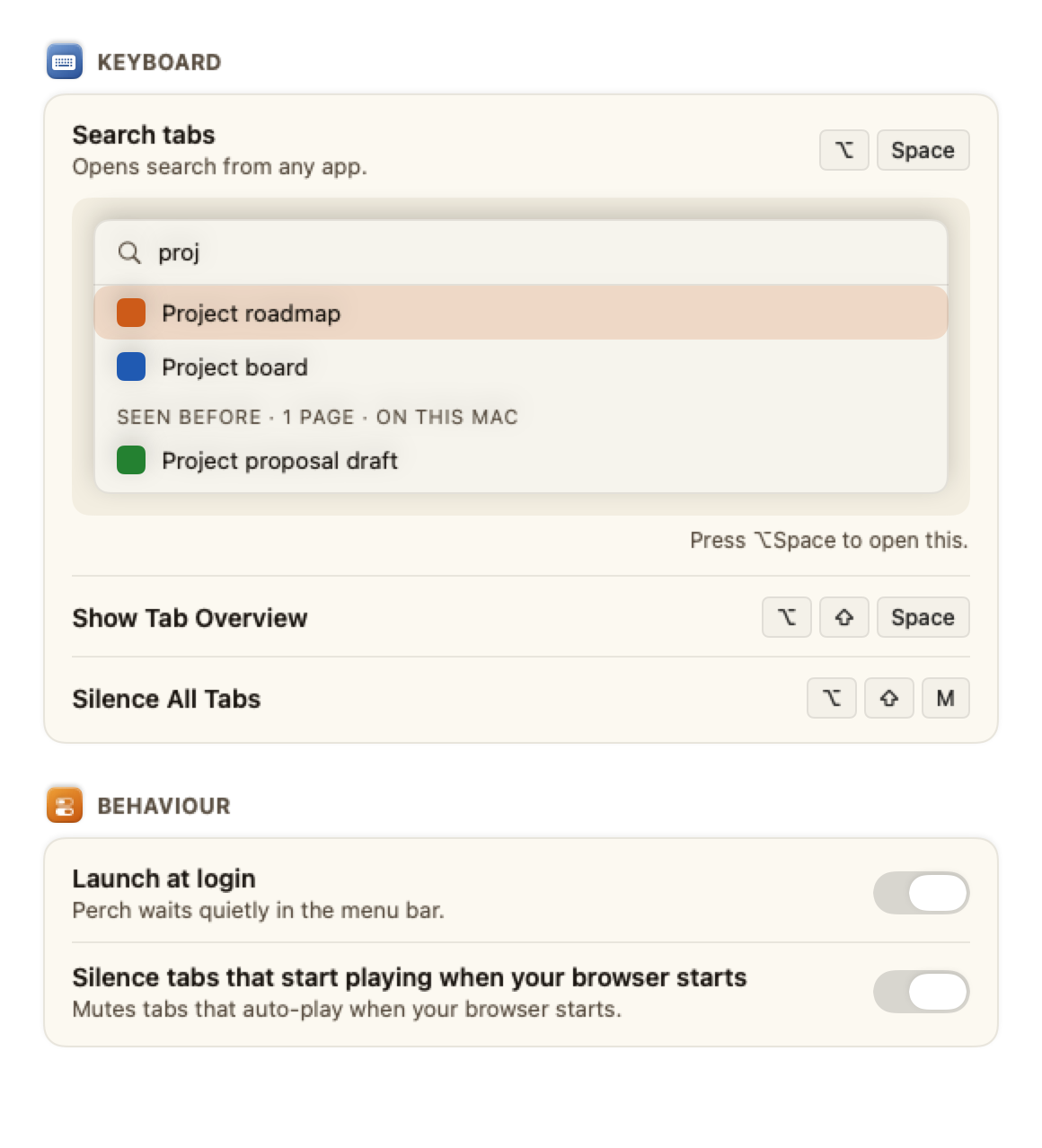
- Three tabs, about a dozen rows. Settings opens on General; Search and Advanced sit beside it (⌘1, ⌘2, ⌘3). Each tab, section and group carries a small coloured badge, and Perch the bird sits at the right end of the tab bar, saying one short line after you do something there — never when Settings opens, never twice, and never while Forget or Remove is open. Every change applies at once and a Changed. Undo line appears at the bottom for a few seconds — it stays while the pointer is on it. Only what can't be undone asks first: Forget, a shorter keep time for Memory, and Remove Perch.
- General — the three shortcuts (search, the Tab Overview, Silence All Tabs), launch at login, and silencing tabs that start playing when your browser starts. Under the search shortcut, a small live picture shows what it opens; click Test and press the shortcut — the keycaps press with you and the picture rises when the key reaches Perch. Above them, once there is something to show, What Perch adjusted: Available improvements lists what Perch has noticed — such as the hot corner opening the Overview by accident — with one sentence why and Apply, and Changes made lists each change Perch suggested or made, who made it, why and when, with Undo and Reset all. A change that needed your consent opens its setting instead of being reversed, and undoing a longer keep time asks first. Perch counts only what kind of thing happened and when — never what you searched for — on this Mac, and Forget everything clears it.
- Search — which model answers a described search. Three groups — On this Mac, Online and A model you run yourself — each show full-width cards; click a card to select that provider. On-device cards need no key; online cards expand when selected to show endpoint and API-key fields with a Test button. Get an API Key… opens the provider's key page; the card says roughly what sorting and searching cost. The Perch on-device card always shows its download state — Download, progress, Ready or Remove — regardless of which card is selected. Test shows a labelled sample answer: the question it asked, the tab that came back, where the question went, and that it was a sample, not a real search. Below it, Privacy: Remember pages I visit, Load preview images from the web and Show Safari tabs (basic), each with one sentence saying what stays on this Mac. Then one Forget… menu: the last hour, today or everything, each confirmed first.
- Advanced — five groups, closed until you open one. AI assistants. Duplicates and Overview: a live example of which addresses count as one page (which copy to keep is chosen on the Overview's Duplicates screen, where the copies are); the hot corner, a small picture of your screen — click a corner to use it, click it again to turn it off (off on a new install; rest the pointer there for a moment) and the cached previews, with the full note on web images: Perch requests preview pictures, site logos and favicons from websites and CDNs, which receive your Mac's address but no cookies. Turning it off stops new requests and hides web images; requests already sent cannot be recalled. Local screenshots are stored on this Mac and still work. This switch does not erase saved screenshots or turn browsing memory off; the separate MCP screenshot tool still answers deliberate requests from an AI client. Browsers: the list of profile names — rename one from “Chrome 2” to “Work” here or by double-clicking it in the Overview — check the extension's connection, and choose how Perch reaches Chrome. It is also where Perch can reach Chrome by AppleScript instead of the extension; there it hides the mute and grouping controls, because AppleScript can't tell it which tabs are playing or grouped. The close × stays on a palette row, an Overview picture and a Tidy Up row, and says Perch can't see whether the tab is pinned: it closes the tab you point at, after checking it's still the same page in the same window (if the tab changed in the meantime it stays open, and Perch says so), and Reopen puts it back in the window it came from. Tidy Up's Close all and the Duplicates screen choose tabs for you, so on this connection they first show the list of tabs they'd close, because Perch can't see which are pinned: you tick the ones to close and confirm, each is checked the same way, and Reopen all brings them back. Below the picker, while Chrome's connection is basic, Show pictures of Chrome pages is off until you turn it on: with Chrome's Allow JavaScript from Apple Events also on, Perch takes a picture of the Chrome page you're looking at, from its window, never switching tabs or looking at private windows, and keeps it on your Mac. The picture comes a few seconds after you settle on a page, cut to the page alone with no tab strip, and shows in the Tab Overview, the hover preview and list rows; it is retaken every few minutes while you stay, and skipped while Chrome is full screen or a side panel or developer tools sit beside the page. Turning it on is the one time macOS asks to let Perch record your screen; quit and reopen Perch afterwards, and if recording isn't allowed, the line under the switch says so and Open System Settings takes you there. Without the extension's live updates, Perch looks at Chrome's windows every few seconds while the palette, the Tab Overview, Tidy Up or Heavy Tabs is open (every 30 seconds otherwise, and never while your screen is locked or Chrome is quit), so a tab you open or close there shows up within seconds. The menu bar menu matches: on this route it says it can't tell what's playing rather than guessing "Nothing is playing", and Ungroup All Tabs and Silence All Tabs are disabled with a reason instead of doing nothing. With Chrome's Allow JavaScript from Apple Events on, Silence All Tabs becomes Silence Page Media: this connection can't mute a tab, so it mutes and pauses the videos and audio in the pages Perch has seen, and Unmute Page Media unmutes only what it muted, never a video you muted yourself. A player embedded from another site, or sound a page makes another way, may keep playing. (On a connection that can only pause, the row reads Pause All Media.) When you open the menu its sound row lists the pages it finds playing under Playing (from the page). On that route, list rows show only a plain word until Chrome's View › Developer › Allow JavaScript from Apple Events is turned on. Once it is, for the pages you've looked at, a row can show the page's own picture, assistants and the
perchcommand can read page text, the palette shows page descriptions and finds words in page bodies, and memory keeps page text, as with the companion. Settings names the setting and everything it unlocks under the picker, since turning it on also lets any app you've allowed control Chrome run scripts in its pages. Without the setting, an assistant asking to read a page is told to turn it on; asking to close, mute or group tabs or search history is told the Perch companion does it. With Show pictures of Chrome pages on as well, an assistant (orperch screenshot) can take a screenshot of the tab in front of Chrome's front window, cut to the page as the pictures are; any other tab is answered as not visible, never brought forward, and without the switch an assistant asking for a screenshot is told to turn it on, with Chrome's Allow JavaScript from Apple Events and macOS Screen Recording beside it. With no browser able to mute, General → Behaviour's auto-silence switch is unavailable and says why. And it is where you control Safari tabs (basic), off on a fresh install until you accept the setup disclosure; returning users keep their saved choice. When it's set to Automatic — the default — Perch reaches for AppleScript by itself only after you've chosen Allow and Connect on the setup guide's basic connection card, and only while no extension is connected; the moment one connects, Perch goes back to it on its own. Unlike Safari basic, a page you actually look at on this route is remembered — with its text while Chrome's Allow JavaScript from Apple Events is on, otherwise its title and address only — so it turns up in “Seen before” and counts toward when a tab was last used, the same as a page a Safari extension records. Data: Memory's keep time (keep newly saved pages for 7, 30 or 90 days, or with no automatic expiry; forget the last hour, today or everything; show its measured size or folder; and Export Memory, whose Export… saves every page Perch keeps on this Mac — addresses, titles, visit times and the passages it kept, older pages included — to a JSON file you choose. Nothing is uploaded, and it needs no account or plan. Fresh installs use 30 days after setup explains that titles and short passages stay on this Mac; an existing retention setting is preserved. Pinned pages survive automatic expiry but not an explicit Forget. If cleanup cannot remove a file, Settings names it for retry.), Sites Perch doesn't remember — added from the palette or the Overview with the crossed-out eye, each with Allow again and Forget Saved Pages… — and storage, Sort by topic (the providers you allowed at your first sort, each with Stop Allowing, and your topic rules), the unanswered-question log, Report a problem…, the update check, and appearance (System/Light/Dark), and Show improvement suggestions — on by default; turning it off stops every suggestion, and the lists in General stay. Public releases use English; saved language preferences, regional formats and tab content are preserved. Debug builds retain the System/English/한국어 localization preview. Legal and removal, last: Acknowledgements opens the full licence texts for every third-party component Perch ships, and Remove Perch.
Suggestions. Perch suggests a change only after the same thing has happened three times in two weeks, at most one suggestion a day, and never over a setting you chose yourself. In the palette, once your results are in and you've stopped typing, a quiet strip may offer to download Perch on-device when your searches describe pages rather than name them (it asks first, shows its progress, and runs your search again when it's ready), or to include Safari tabs when Safari is open and Perch can't see it — with the same note Settings shows about private windows, before the button. The menu-bar note about a taken shortcut may offer two free ones to pick, and the Tab Overview's duplicates chip may read Review?. When a search finds nothing older than your keep time allows, Perch may offer to keep pages longer (undoing that asks first, because a shorter time deletes pages); when you look for yesterday while Memory is off, it may offer to open Memory's own switch — it never turns Memory on itself; and when the hot corner keeps opening the Overview by accident, the Overview may offer to turn it off. On the basic connection, when you keep reaching for something it can't do — tabs it couldn't close, an assistant or perch asking for something it can't give, an Overview with no pictures for its tabs — the menu or the Overview may say what the companion adds and offer Add Companion…, which opens the setup guide on that browser's card; never in the palette, at launch or as a notification, and never right beside the thing that didn't work. If you set it aside twice it waits in Settings' list. Only that last one may ever happen on its own, and only after people have said yes to it nearly every time: Perch then says why, counts down eight seconds (paused while you point at it), and offers Undo. Each has Not now and Don't suggest this, every change shows Changed. Undo, and turning off Show improvement suggestions in Settings → Advanced → Data stops them all.
Tell Perch. In the search palette you can also type what you want changed — turn off the hot corner, include Safari tabs, use dark mode. Below your results, one row shows the exact change, such as Hot corner: Bottom right → Off. Press ↓ to reach it and ↩ to apply it, or start your request with > to go straight there; ↑ or esc goes back. Every change offers Undo. Perch only changes settings it already has, and anything that sends data online, deletes pages or turns on Memory opens Settings instead, where you're asked first. It reads only what you typed.
Perch the bird sits at the right end of the Settings tab bar. When you pick a tab, flip a switch or press Test, it may say one short line about what you just did, such as “Stays on this Mac.” while AI search sends nothing off your Mac. Each line plays at most once while Settings is open, and the bird stays quiet while a Forget… or Remove… confirmation is open. Everything it mentions also shows in its own row, so VoiceOver skips it. With Reduce Motion on it never moves, and in a window 600 points wide or narrower it is not shown. There is no switch for it.
Removal
Remove Perch without guessing what was left behind
Removal is deliberately narrow: Perch removes only the items it can verify are its own, reports exactly what happened to each one, and gives you manual steps for the things macOS, a browser or an assistant owns.
What the two phases do
- Open Settings → Advanced → Legal and removal and choose Remove Perch’s data and browser links…. Review what Perch can remove separates automatic, manual and preserved items. Nothing is removed by the preview.
- A second sheet explains the durable disabled state. Choose Remove shown items only after reviewing the list. Perch disables startup first, stops new browser, Memory and assistant work, drains current work, saves recovery state, and will quit after live work has stopped.
- After Perch quits, reopen Perch yourself. It enters Runtime-free recovery instead of rebuilding the normal app. Recovery rechecks the operation marker and processes one verified target at a time, saving each result before the next.
- The result names Removed, Not found, Could not remove and Preserved for safety separately. Try again acts only on the recorded failed target. If a quarantine name now belongs to a different item, both items stay and the conflict is not retried automatically.
- Perch remains disabled after the report. Keep it disabled and close the report, or acknowledge the displayed residuals if you accept them, then choose Set up again to clear the exact disabled state and quit. A new item, including a replacement at a previously removed name, is kept for your acknowledgment. Reinspection resets acknowledgment if its identity changes. Reopen Perch yourself to start setup.
What Perch can inspect
The automatic inventory uses exact identities: ~/Library/Application Support/Perch and the former ~/Library/Application Support/ChromeManager; preferences and Keychain services com.shiijak.perch and com.shiijak.chromemanager; the known Keychain accounts openai, anthropic, compatible and jev; owned Chrome, Firefox and Aside native-host files named com.shiijak.perch.json plus the former Chrome file com.shiijak.chromemanager.json; and the Safari relay socket inside ~/Library/Group Containers/C5LU8E4GB9.com.shiijak.perch. Foreign, malformed, linked, replaced, unknown or non-empty items are reported and preserved.
The residual barrier is intentional. Its shared-container leaves are .perch-removal-disabled-v1, .perch-removal-terminal-v1, .perch-removal-clearing-v1 and .perch-removal-outcomes-v1.jsonl; the clearing leaf exists only while an interrupted Set up again or cancellation is being finished. The outcome file contains only bounded target identifiers, kinds, filesystem identity metadata, result statuses and plan digests, never paths, page titles, page contents or saved keys. The Perch preferences domain also keeps its small disabled-install and recovery record. Let Set up again clear that exact state while Perch is still installed. If you remove the app first, these disclosed leaves may remain in the Perch group container; they are removal-control records, not browsing data.
If publication or clearing is interrupted, exact operation-bound control temps may also remain: .perch-journal-<operation UUID>.tmp, .perch-remove-<operation UUID>.tmp, and leaves beginning .perch-removal-publish-. Recovery and Set up again validate and finish those control records; foreign or malformed occupants are preserved and keep setup blocked.
Chrome and Firefox popups hide history-permission controls while removed. After app setup completes and you manually reopen Perch, choose Set up again in any still-disabled companion popup; it reconnects only after the app proves support for safe re-enable. Safari uses the same explicit setup lifecycle, with no history controls. Chrome and Safari basic connections have no companion storage or popup to clear: Perch stops their watchers and Automation work, and macOS Automation permissions remain a manual step.
Finish these items manually
- Chrome companion — Remove Perch from chrome://extensions
- Firefox companion — Remove Perch from about:addons
- Aside companion — Open Aside → Extensions and remove Perch
- Safari companion — Turn off Perch Companion in Safari Settings; moving Perch.app removes its embedded extension
- Chrome Automation permission — Revoke Perch → Google Chrome in System Settings → Privacy & Security → Automation
- Safari Automation permission — Revoke Perch → Safari in System Settings → Privacy & Security → Automation
- Chrome Manager Automation permission — Revoke Chrome Manager → Google Chrome in System Settings → Privacy & Security → Automation
- Login Items — Remove Perch and Chrome Manager from System Settings → General → Login Items if either remains
- Claude Code MCP entry — Run claude mcp remove --scope user perch; remove no other server
- Codex MCP entry — Run codex mcp remove perch; if needed, remove only [mcp_servers.perch] from ~/.codex/config.toml
- Claude app MCP entry — Remove only mcpServers.perch from ~/Library/Application Support/Claude/claude_desktop_config.json
- Former Chrome Manager Claude Code entry — Run claude mcp remove --scope user chrome-manager; remove no other server
- Former Chrome Manager Codex entry — Run codex mcp remove chrome-manager; if needed, remove only [mcp_servers.chrome-manager] from ~/.codex/config.toml
- Former Chrome Manager Claude app entry — Remove only mcpServers.chrome-manager from ~/Library/Application Support/Claude/claude_desktop_config.json
- Perch application — Move Perch.app to the Bin after removal finishes
- External backups — Remove any copies you exported or backed up separately if you want them gone
Perch cannot remove copies in Time Machine or other external backups. Remove those separately only if you want them gone.
This cleanup is not forensic erasure. It never recursively deletes a browser profile, your home folder, or a shared container root. It never edits a whole Claude or Codex configuration to remove one MCP entry. Browser sync, disk snapshots and third-party backups can retain copies outside Perch’s control.
Two limits, one promise
Where it says “I don't know” instead of guessing
Both limits come from Chrome, not from a missing feature. Neither is left for you to discover.
A sleeping tab can't be read
Chrome discards tabs you haven't touched. There is nothing left in one to read. Asked to read it, the app names that tab and says it was asleep — rather than handing back a blank page.
Open times don't survive a restart
Chrome throws that note away every time it quits. So Tidy Up sorts by last visit, and calls it Longest unused.
Tabs it has no time for sit under No usage recorded — ancient or brand new, it won't pretend to know.
Private windows do not exist here
Never in the search. Never in the pictures. Never captured. Never visible to an assistant.
Not hidden behind a count, not listed as skipped. A tab in one comes back the way a closed tab comes back: not found.
They never reach the app in the first place: the extension tells it only that a private window exists and whether it is in front, never which pages are in it. Reload the extension in each Chrome profile to get this.
One exception, only when enabled on a fresh install: Safari tabs (basic) lists Safari's private windows too — in the search, the Tab Overview and to an assistant — because Safari doesn't say which windows are private, and a tab there closes like any other when you (or an assistant) name it; Reopen puts it back only into its own window. Nothing from basic mode is ever captured. Turn the switch off in Settings → Advanced to stop it, or turn on Perch's Safari extension, which tells private windows apart and keeps them out like Chrome's.
If something goes wrong
Eight things, and the fix for each
- “Not connected”
- Check the app is running, then wait up to a minute — the extension retries on its own. Just moved or rebuilt the app? Quit and reopen it. Settings → Advanced → Browsers → Status can reinstall Chrome's link to it.
- “Chrome (basic, companion off)” or “Chrome · not answering”
- Perch Companion in that browser stopped answering — turned off, removed, or its browser was updated. Perch says so only after 20 seconds of silence, and never for a browser you quit. If the basic connection is set up, Perch switches to it by itself, the menu row reads Chrome (basic, companion off), and the next Tab Overview says so once, with Fix…. Without it, the menu and Settings → Advanced → Browsers → Status show Chrome · not answering with Fix Connection…. Either opens the setup guide on that browser's card, where you can turn the companion back on. If the menu says Perch Companion needs an update, restart that browser; if it says this Perch is older than its companion, choose Check for Updates…. Perch never shows a pop-up, a notification, a sound or a badge for this.
- “macOS hasn't allowed Perch to control Chrome”
- On the AppleScript connection, this line under Settings → Advanced → Browsers → How Perch reaches Chrome means macOS's Automation permission for Chrome is off, so Perch can't list your Chrome tabs. Turn on Perch → Google Chrome in System Settings → Privacy & Security → Automation; the line goes away on Perch's next refresh. Safari basic shows the same line, naming Safari, under its switch.
- If ⌥ Option + Space opens another app
- Gemini, Raycast, Alfred and ChatGPT all register the same shortcut by default. During setup, Perch tests whether the key reaches it and names the app that answered instead. If the test misses, the setup guide offers up to three alternatives that are free on your Mac — or you can type your own. You can also re-test or change the shortcut any time in Settings → General → Keyboard shortcuts → Test. When a known claimant app launches later, Perch adds a quiet note under Search Tabs… in the menu with a Test Shortcut… button so you can check again without guessing. If the shortcut reaches Perch but another app also opens, the palette stays visible, Perch comes forward once, and a notice offers Change Perch's Shortcut… or Keep ⌥Space; the test UI reports the shared key as a clash.
- Browser-link repair leaves a file in place
- Perch preserves foreign, malformed and unsafe linked native-host manifests. A foreign Chrome file makes repair fail; a foreign Firefox file is skipped. Do not delete another application's file to force repair. Existing owned files can update their helper path; public store identity and owner verification are still pending.
- “Already running”
- Only one thing can hold the connection to Chrome. Usually that's a second copy of Perch — quit it from its own menu bar icon. It also names
perch serve; ignore that if you've never run it. - Test says HTTP 401
- The API key is wrong, expired or revoked. Generate a new one and paste it into Settings → Search. Nothing else is affected; keyword search keeps working regardless. Sort by topic says the same thing in its own words: … didn't accept your API key.
- Importing an API key from my shell
- In Settings → Search (under Advanced in the provider's card) or in setup, choose Import from my shell deliberately. Perch does not run this at launch or when you choose a provider. It runs login, interactive zsh startup files once; those files can run commands or ask for folder access. Import fills an empty key slot and keeps an existing key; paste and Save to replace it, or clear the Settings field and Save to remove it. Cancel import stops pending work, not commands or a Keychain write already issued. The shell has a five-second execution limit plus up to 1.5 seconds for cleanup; Keychain authorization and OS scheduling are separate. It gets your home folder and a system PATH, not Perch's inherited environment or a custom ZDOTDIR. If that differs from your terminal setup, paste a key instead. Test and Fetch Models remain separate actions.
- Preparing a safe problem report (Free-release preparation)
- Settings → Advanced → Data → Report a problem… shows the app's visible version and build number separately from each browser companion's version, plus cached connection status; an app-only fix can therefore have a newer build while the unchanged extension keeps its store version. Unknown or not-checked facts stay explicit. Review the exact text, then choose Copy report or Save report…; both use that same report. Only Refresh report recollects it. Nothing uploads automatically, and no tabs, URLs, queries, keys, profile paths, logs or crash contents are attached. Email support and setup timing are not configured in this build. Cancel cannot undo a completed or possibly completed copy/save; check the clipboard or chosen file if an action reports uncertainty. Native walkthrough evidence is still pending.
- When nothing matches
- Settings → Advanced → Data → Record unanswered AI searches keeps a local record of AI searches that came back empty, so you can spot questions Perch keeps missing. It is off by default, stores only the query text, time and action — never URLs, titles or tab data — and entries expire after 30 days. View, clear or export the log from the same Settings section. The exported file never leaves your Mac automatically and is never attached to diagnostics.
- Does Perch check for updates?
- Perch has a daily update check wired and on by default. Check for updates in Settings → Advanced → Data → Updates controls whether the automatic daily check runs. Perch checks once a day whether a newer version is available. The check sends an ordinary HTTPS request to the Perch website. No tabs, queries, page content or device identifier are included. Turning this off stops automatic checks; you can still check manually. Check for Updates remains available manually. Not yet active: no production endpoint exists in this build. The feature is fully inert until a public release origin is configured.
- AI search says the provider “turned the search down”
- The provider refused the request — most often because the account has run out of credit, sometimes because it hit a rate limit. Add credit or raise the limit on the provider's own website, or choose another provider in Settings → Search. Keyword search keeps working regardless.
- Perch on-device: download, remove and troubleshooting
- Perch on-device is a search model Perch downloads once from its own site (about 574 MB). It runs on your Mac's processor, sends nothing anywhere, and needs no account. The Perch on-device card in Settings → Search shows its download state — Download, progress, Ready or Remove — regardless of which card is selected, even on a Mac where Apple Intelligence is off or unavailable, and even while an online provider is active. Pressing Download opens a consent prompt that names the model, its licence and the download size. Progress shows during the download; Cancel pauses it and you can resume later. After the download, Perch checks the file before using it; the Perch on-device card becomes selectable. If Perch says the file is damaged, press Download Again. To free the space, press Remove on the same card; search falls back to Apple Intelligence if available, or keyword search. On a Mac where both can run, Perch on-device and Apple Intelligence appear as separate cards under On this Mac; click the one you want. Third-party licence notices: Settings → Advanced → Legal and removal → Third-party software. Not yet available: the download is not offered until Perch's download site is live.
- An assistant can't reach the app
- It will say which: not running means open the app; its MCP server is off means set Let AI assistants use Perch to Read only or Read and act. If neither, quit and reopen the assistant itself.
- The menu shows “⚠ N issues” and you're not sure why
- Open Status from that line (or Settings → Advanced → Browsers → Status). Alongside the bridge and shortcut checks, a Background tasks section now lists any automatic job that failed quietly — reading a page's text, or re-arming auto-silence — and the reason. The count clears itself the next time that job succeeds.
perchprints nothing, or a command doesn't work- Run
perch doctor. It tells "Perch is not running" apart from "its MCP server is off", and reports both versions, which switches are on, and which browsers and profiles it can see, all in one call.